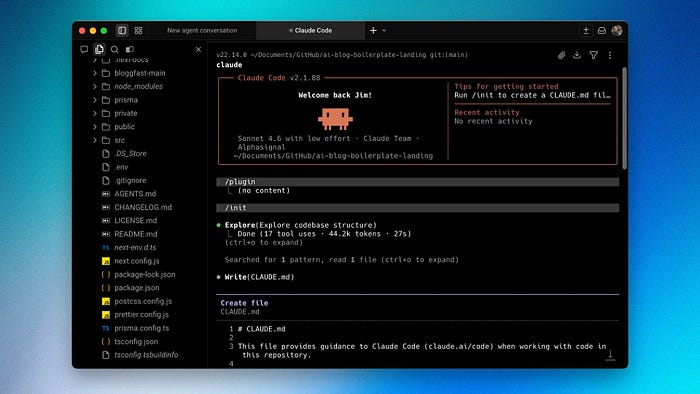
For the past few years, I've been experimenting with how software gets built when you have coding agents doing the heavy lifting.
I come from a developer background, and like most people who build software products for a living, I've watched the tooling change fast. What started as autocomplete and code suggestions has become something much more capable: agents that can reason through a task, scaffold features, refactor large sections of a codebase, debug issues, and even help ship full-stack apps with surprising speed.
Over the last three years of what people now call vibe coding, I've tried a bunch of tools and workflows. Most of them fall into three buckets:
- IDEs (Integrated Development Environments)
- Coding agents inside the CLI
- Desktop apps
Of course, all of these tools have their own pros and cons.
IDE vs CLI vs desktop app
IDEs like Antigravity, Cursor, or Kiro are all forks of VS Code. They offer a familiar environment for developers and an easy-to-use UI for beginners.
But the tradeoff is speed.
Because of all the UI components loaded at once, latency can become noticeable. Speed matters a lot to me, so when IDEs lag or crash, I get really frustrated.
Another thing is having to switch between the prompt field and the terminal. I find that part a bit cumbersome, and I often get confused between the two.
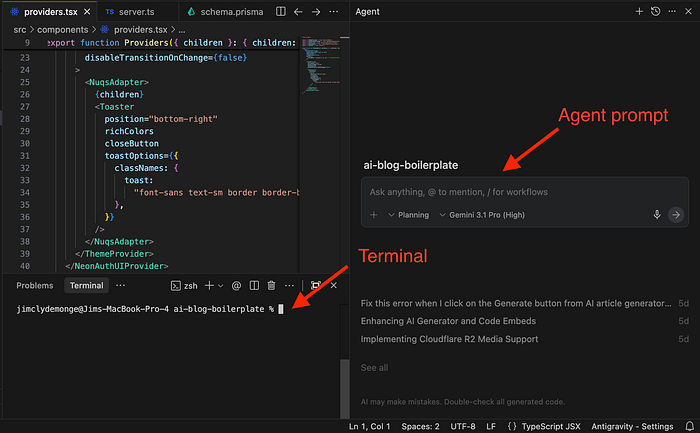
Then there is the terminal.
Hardcore devs will always prefer using the terminal. You can run commands quickly, and you don't suffer as much from latency. It's fast, flexible, and feels natural once you're used to it.
Before Warp, I was running Claude Code in a plain CLI on Mac. Fast, flexible, and useful to me as a developer.
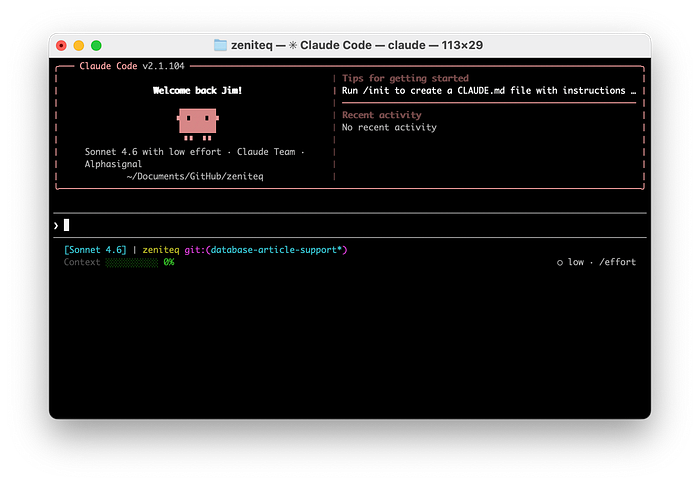
But a few things kept bugging me:
- If I wanted to check the source code, I'd have to open a separate IDE to look at what changed.
- Organizing multiple instances of coding agents across multiple open terminals was messy without tabs.
- There were no notifications when an agent was thinking, out of tokens, or done working.
As the project gets bigger, code review, task monitoring, and managing multiple agents get painful.
The desktop app is the option I enjoy least. OpenAI's Codex and Anthropic's Claude desktop app are two of the most popular right now.
Too simple and too slow for how I work. For beginners, it's probably fine because you don't have to deal with technical stuff like commands. All you really need to worry about is writing a good prompt and letting the AI handle most of the work.
But here's the thing: you don't have to pick between these environments.
There's another agentic coding tool called Warp that gives me the speed and lightness of the CLI and the ease of use of a more visual tool.
Let me walk through how I use Claude Code with it.
Why I switched to Warp
Warp is an agentic development environment, born out of the terminal. I tried it about a year ago and liked it immediately.
What hooked me right away was that it didn't feel like a bloated IDE, but it also didn't feel like a bare terminal that leaves you to figure everything out on your own. It sits somewhere in the middle, and that's exactly where I want to be when I'm working with coding agents.
It's lightweight. It's fast. It supports multiple models. It feels agentic. And it gives me something between a terminal and a full IDE without making me commit to either one.
It didn't replace the parts I liked about using Claude Code in the terminal. It just made the experience around it better.
How I use Claude Code in Warp
In the prompt field, Warp accepts terminal commands, so when you type "/model," it'll show all supported models. Open the "Full Terminal Use" tab, and you can see every Claude model available to you.
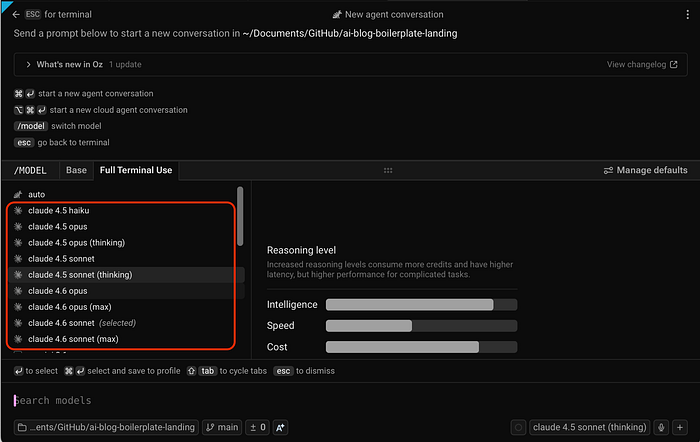
You can also choose other models or launch Warp's Oz orchestrator to handle the agent scaffolding for you.
Now, whenever I prefer to work inside Claude Code instead of Warp's built-in composer, I can simply run "claude" and continue using it as I would inside the CLI.
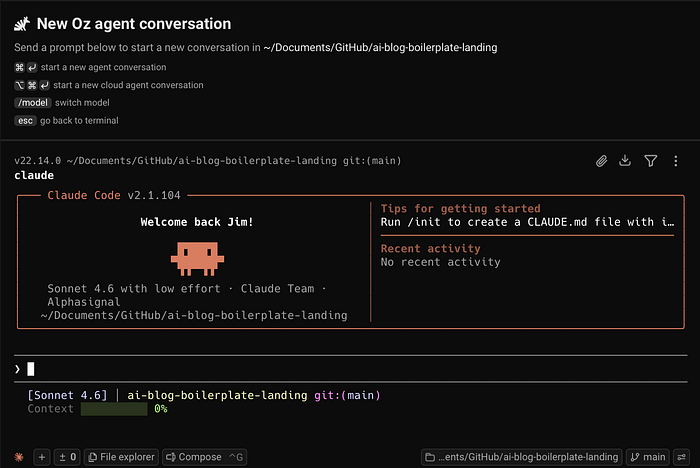
This is pretty cool, right? To switch back to the composer, I just click on the "Compose" button.
CLI Agent Toolbar
Another reason I prefer Warp over a default CLI terminal is the customizable controls in the toolbar section.
Power users want their agent workflow tailored to them. The toolbar puts the right controls at your fingertips without leaving the terminal.
To get to it, right-click on the toolbar section and select "Edit CLI agent toolbelt."
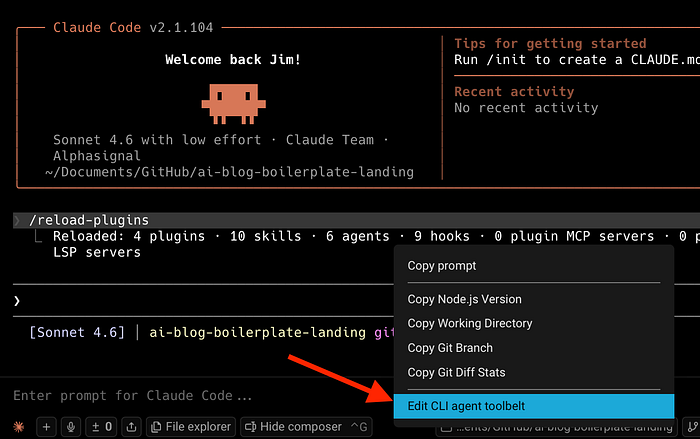
This brings up a modal where you can customize which tools appear on both the left and right sides of the toolbelt.
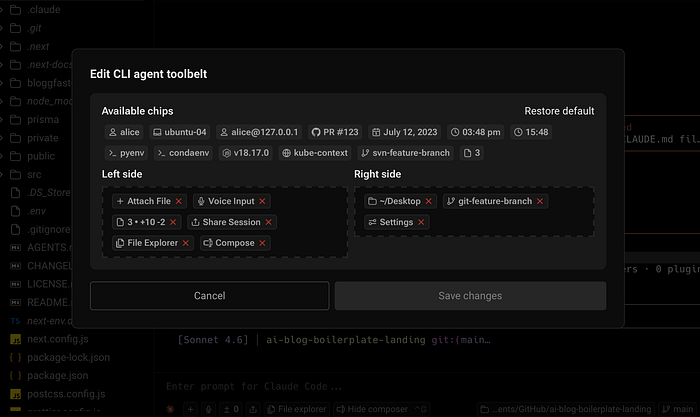
Here's my default setup: no voice input since I prefer typing my prompts, no session sharing since I'm a solo dev, and I always want to see which branch is active on which project folder.
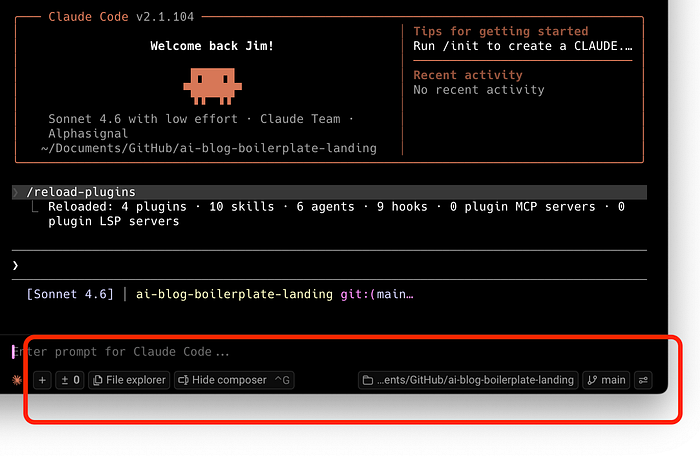
If you work on a team, it's worth enabling the current logged in user and the shortcut to share your session with other team members.
I stay in one environment with quick access to the things I actually need when working with an agent. No bouncing between different apps just to give better context or review what changed.
That is a big part of why Warp feels more complete than a plain terminal.
Unified Notifications
Agents run in the background, and they do not always need your attention right away.
- Sometimes they are still thinking.
- Sometimes they are waiting for a response. S
- Sometimes they are out of tokens.
- Sometimes they are done and ready for the next instruction.
In a regular terminal, you kind of have to babysit all of that yourself.
Warp fixes this with a unified notifications UI that keeps you in sync with all your agents across tabs. You do not have to keep checking every session manually just to see whether something happened. Desktop notifications are also supported, which is especially useful when you are multitasking.
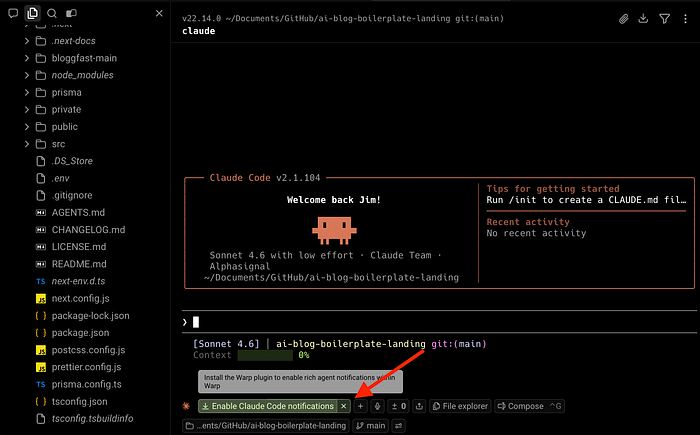
Click on the "Enable Claude Code notifications," and this will install the Claud Code plugin.
On bigger projects with longer-running tasks, I rely on notifications constantly. I used to alt-tab through terminal windows just to check whether an agent was stuck or waiting on me. That got old fast. Now I don't have to.
Code Review Comments
Agents can write code fast. But humans are still the ones responsible for making sure the code is actually good.
That's why I like Warp's code review comments feature.
Instead of treating code review as something completely separate from the agent workflow, Warp keeps the loop tight. I can review agent-generated code, leave inline comments, and send that feedback directly to a running third-party agent session.
Here's an example:
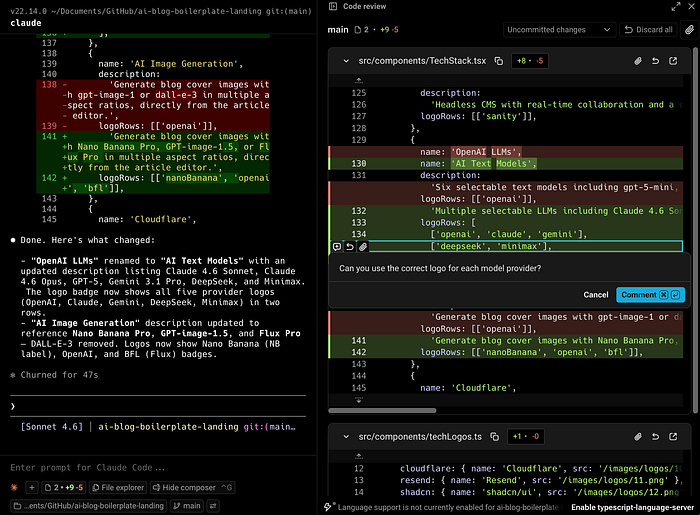
That means the agent can iterate based on very specific feedback without me having to manually re-explain everything in another window.
This is a really smart workflow improvement.
One of the biggest gaps in agentic development right now is that generation is easy, but iteration can still feel clunky. Warp makes that feel much smoother. You can generate, review, comment, and course-correct all in one place.
Why this setup matters
If you're already using coding agents or thinking seriously about building with them more often, this kind of setup matters for a few reasons.
The first reason is speed.
And I do not just mean model speed. I mean your actual working speed as a developer. How quickly can you launch the right setup, hand over context, review changes, monitor progress, and move across tasks without breaking focus? That's where the environment around the agent makes a difference. A plain terminal doesn't help you much there. An IDE might, but you pay for it in weight and latency.
The second reason is visibility.
Once you start using agents more heavily, you need better awareness of what each session is doing. You want an easy way to know when an agent needs attention, when it's done, or when you're about to hit a token limit. That's much easier when your environment is actually designed for it, rather than something you're duct-taping together across multiple windows.
The third reason is flexibility.
You're not limited to one model. You can switch between them depending on what you need. Sometimes you want something faster. Sometimes you want stronger reasoning. Sometimes you want to save money. Being able to pick the right model for the right task is one of the easiest ways to work more efficiently and keep costs under control.
The fourth reason is that Warp seems to listen to developers.
This matters a lot in a space that's changing as quickly as agentic development. The tools that win here are the ones that move fast, pay attention to how developers actually work, and keep shipping useful stuff. From what I've seen, Warp has been more consistent about that than most of the competition.
I encourage you to follow their X account to see how much they listen and how quickly they make sure all major concerns are addressed.
And from personal experience: it's been useful. I've been building my apps with Warp, and my Claude Code workflow is noticeably better for it. Not because it changes what Claude can do on its own, but because it makes everything around Claude smoother.
Final thoughts
To summarize everything, my ultimate Claude Code setup is really about combining the strengths of different environments without being forced to fully commit to only one.
I talked about the tradeoffs between IDEs, the CLI, and desktop apps. IDEs are familiar and approachable, but they can feel heavy. The CLI is fast and flexible, but it gets messy as projects and agent sessions grow. Desktop apps are simple, but for me, they often feel too limited for serious work.
That is why Warp works so well in this setup.
It gives me the speed and lightness I want from the terminal, while also giving me a better experience around code review, task monitoring, multiple agent sessions, and prompt composition. Features like Vertical Tabs, notifications, the CLI agent toolbar, Code Review Comments, and model flexibility all add up to a workflow that feels much more practical for real agentic development.
Personally, using Claude Code with Warp has made me more productive, more organized, and a lot more comfortable working across larger projects. It helps me stay in flow, manage more agents at once, and spend less time dealing with the awkward parts of the workflow.
Of course, this is still based on my own personal preferences. Everyone has a different way of working, and that is completely fine. The good thing is that Warp gives you enough flexibility to explore the app and customize the setup however you want.
If you are already using Claude Code, I think Warp is worth trying.
Give Claude Code in Warp a shot, test a setup that fits your workflow, and let me know what you think about the experience.

This story is published on Generative AI. Connect with us on LinkedIn and follow Zeniteq to stay in the loop with the latest AI stories.
Subscribe to our newsletter and YouTube channel to stay updated with the latest news and updates on generative AI. Let's shape the future of AI together!
