The Scanner That Changed Everything
Here's something most bug bounty guides won't tell you upfront:
Nuclei has over 9,000+ templates maintained by a community of 100,000+ security engineers. It detected CVE-2025–1974 (Kubernetes vulnerability) before most commercial scanners. When Log4Shell (CVE-2021–44228) was announced, Nuclei had a working detection template within hours.
But here's the problem: Most hunters use Nuclei wrong.
They run:
nuclei -u https://target.comGet 500 results. Report everything. Wonder why 490 are marked duplicate or not applicable.
The difference between a hunter earning $200/month and one earning $5,000+/month with Nuclei? They know which templates to use, when to use them, and how to write custom ones.
This guide will show you exactly how.
What is Nuclei? (The Simple Explanation)
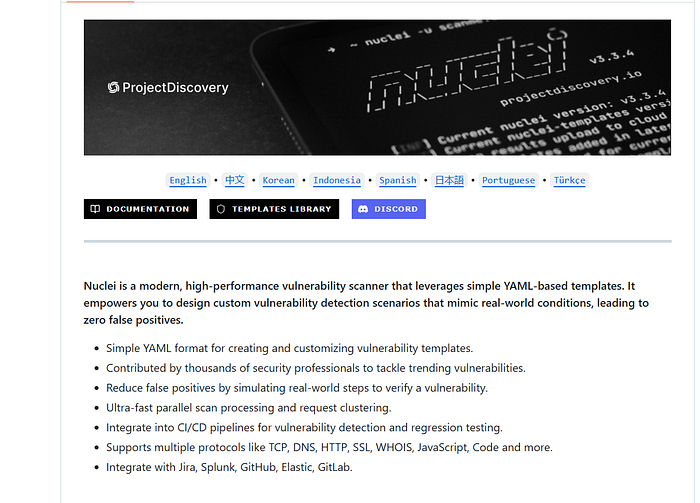
Think of Nuclei like a robot security guard with 9,000+ different checklists.
Each checklist (called a "template") checks for one specific security problem:
- Template #1: "Is admin panel accessible without login?"
- Template #2: "Can I read sensitive files?"
- Template #3: "Is there SQL injection in login form?"
You tell Nuclei: "Check this website against these 100 checklists."
Nuclei runs through all 100 checks in minutes and reports what it finds.
The technical definition:
Nuclei is a fast, template-based vulnerability scanner built by ProjectDiscovery. It uses YAML files to define how to detect specific vulnerabilities and can scan HTTP, DNS, TCP, and other protocols.
Why it matters for bug bounty:
✅ Free and open-source ✅ Community updates templates daily ✅ Can scan thousands of targets in minutes ✅ Supports custom templates (find unique bugs) ✅ Integrates with other tools easily
Installing Nuclei in 2026 (Fast, Clean, Bug Bounty Safe)
Method 1: Using Go (Recommended)
Pre-requisite: Go 1.24.2 or higher
# Install Go if you don't have it
# Ubuntu/Debian:
sudo apt update
sudo apt install golang-go

# Verify Go installation
go version

# Install Nuclei
go install -v github.com/projectdiscovery/nuclei/v3/cmd/nuclei@latest

# Add Go bin to PATH (if not already)
echo 'export PATH=$PATH:$HOME/go/bin' >> ~/.bashrc
source ~/.bashrc

# Verify installation
nuclei -version
What each command does:
go install: Downloads and compiles Nuclei from source-v: Shows verbose output (you see what's happening)@latest: Gets the most recent versionecho 'export PATH...': Makes nuclei available from any directory
Method 2: Direct Download (No Go Required)
# Download latest release for Linux
wget https://github.com/projectdiscovery/nuclei/releases/latest/download/nuclei_3.3.9_linux_amd64.zip

# Extract
unzip nuclei_3.3.9_linux_amd64.zip
# Make executable
chmod +x nuclei
# Move to system path
sudo mv nuclei /usr/local/bin/
# Verify
nuclei -version
First Time Setup
# Download all community templates
nuclei -update-templates

# This downloads 9,000+ templates to:
# ~/.local/nuclei-templates/
What just happened?
You now have 9,000+ ready-to-use vulnerability checks on your system!
How Nuclei Templates Actually Work (And Why Most Hunters Misuse Them)
What is a Template?
A template is like a recipe that tells Nuclei:
- Where to send requests
- What to look for in responses
- How to confirm if vulnerability exists
Example: Simple XSS Template
id: basic-xss-test

info:
  name: Basic XSS Detection
  author: yourname
  severity: medium
  description: Checks for reflected XSS
http:
  - method: GET
    path:
      - "{{BaseURL}}/?search=<script>alert(1)</script>"

    matchers:
      - type: word
        words:
          - "<script>alert(1)</script>"
        part: body
Breaking this down:
id: Unique name for this templateinfo: Details about what it doeshttp: Type of scan (can also be dns, tcp, etc.)method: GET: Send a GET requestpath: Where to send it ({{BaseURL}}= target URL)matchers: What to look for in responsewords: If response contains<script>alert(1)</script>, vulnerability found!
How this works:
- You run:
nuclei -u https://target.com -t basic-xss.yaml - Nuclei sends:
GET https://target.com/?search=<script>alert(1)</script> - If response includes your payload = XSS found!
Basic Usage: Your First Scans
Scan Single Target
# Scan one website
nuclei -u https://scanme.sh

# What this does:
# - Loads ALL templates (9,000+)
# - Tests scanme.sh against each one
# - Reports any findings
Output explanation:
[CVE-2021-41773] [http] [critical] https://scanme.sh/cgi-bin/.%2e/.%2e/.%2e/etc/passwdReading this:
[CVE-2021-41773]: Template that found it[http]: Protocol used[critical]: Severity level- URL: Where vulnerability exists
Scan Multiple Targets
# Create a file with URLs
cat > targets.txt << EOF
https://target1.com
https://target2.com
https://target3.com
EOF

# Scan all of them
nuclei -list targets.txt
Scan Specific Template Category
# Only scan for CVEs
nuclei -u https://target.com -tags cve

# Only scan for exposed panels
nuclei -u https://target.com -tags panel,exposure

# Only scan for critical issues
nuclei -u https://target.com -severity critical,high
Advanced Nuclei Filtering: How to Reduce Duplicates by 80%
Most beginners run all 9,000 templates on everything. That's wrong.
Filter by Tags
Tags group similar templates together.
# Scan for specific vulnerability types
nuclei -u https://target.com -tags xss,sqli,rce

# Scan for config issues
nuclei -u https://target.com -tags config,exposure

# Scan for known exploited vulnerabilities (KEV)
nuclei -u https://target.com -tags kev,vkev
Available tags:
cve: All CVE templatespanel: Admin panels, login pagesexposure: Exposed files/configsxss: Cross-site scriptingsqli: SQL injectionrce: Remote code executionlfi: Local file inclusionssrf: Server-side request forgerykev: Known exploited vulnerabilities
Filter by Technology
# Only scan WordPress sites
nuclei -u https://target.com -tags wordpress

# Only scan Apache servers
nuclei -u https://target.com -tags apache

# Only scan Joomla
nuclei -u https://target.com -tags joomla
Filter by Severity
# Only critical/high
nuclei -u https://target.com -severity critical,high

# Only medium
nuclei -u https://target.com -severity medium

# Everything except info level
nuclei -u https://target.com -severity critical,high,medium,low
Filter by Year (Secret Technique)
# Only CVEs from 2024
nuclei -u https://target.com -tags cve -t 'nuclei-templates/cves/2024/'

# Only CVEs from 2025
nuclei -u https://target.com -tags cve -t 'nuclei-templates/cves/2025/'

# Specific CVE pattern
nuclei -u https://target.com -t 'nuclei-templates/cves/CVE-2024-*'
Why this matters:
Recent CVEs = higher chance the target isn't patched yet.
Power User Techniques (What Top Hunters Actually Do)
Technique #1: Chain with Other Tools
Nuclei accepts input from other tools via STDIN (standard input).
Example: Subfinder + Nuclei
# Find subdomains, then scan them
subfinder -d target.com -silent | httpx -silent | nuclei -tags exposure,config
What this does:
subfinder: Finds all subdomainshttpx: Checks which ones are alivenuclei: Scans live ones for exposures
Example: FFuf + Nuclei
# Find hidden endpoints, then scan them
ffuf -u https://target.com/FUZZ -w wordlist.txt -mc 200 -o urls.txt

cat urls.txt | jq -r '.results[].url' | nuclei -tags xss,sqli
ffuf finds hidden endpoints → jq extracts valid URLs → nuclei scans them for XSS & SQLi 🚀
Technique #2: Custom Headers (For Bug Bounty Programs)
Many programs require you to identify your traffic.
# Add custom header to all requests
nuclei -u https://target.com -header "User-Agent: BugBounty-Hunter-YourName"

# Multiple headers
nuclei -u https://target.com \
  -header "User-Agent: BugBounty-YourName" \
  -header "X-Bug-Bounty: YourEmail@example.com"
Technique #3: Rate Limiting (Avoid Getting Blocked)
# Limit to 10 requests per second
nuclei -u https://target.com -rate-limit 10

# Limit concurrent templates (less aggressive)
nuclei -u https://target.com -bulk-size 10 -concurrency 5
Explanation:
-rate-limit 10: Max 10 requests/second-bulk-size 10: Process 10 templates at once-concurrency 5: Max 5 parallel connections
Technique #4: Save Results Properly
# Save to text file
nuclei -u https://target.com -o results.txt

# Save as JSON (better for parsing)
nuclei -u https://target.com -json -o results.json

# Save markdown report
nuclei -u https://target.com -markdown-export report.md
Technique #5: Exclude Templates (Reduce False Positives)
# Exclude informational findings
nuclei -u https://target.com -exclude-severity info

# Exclude specific templates
nuclei -u https://target.com -exclude-templates dns/,ssl/

# Exclude tags
nuclei -u https://target.com -exclude-tags fuzz,fuzzing
Writing Custom Nuclei Templates (How Hunters Find Bugs Others Miss)
Generic templates = everyone finds same bugs = duplicates.
Custom templates = unique findings = bounties.
Template Anatomy
Every template has these parts:
id: unique-template-name

info:
  name: Human readable name
  author: yourname
  severity: high
  description: What this checks for

http:
  - method: GET/POST
    path:
      - "{{BaseURL}}/endpoint"

    matchers:
      - type: word
        words:
          - "success indicator"
Example 1: Check for Exposed .git Directory
id: git-directory-exposed

info:
  name: Git Directory Exposure
  author: yourname
  severity: high
  description: Checks if .git directory is exposed
http:
  - method: GET
    path:
      - "{{BaseURL}}/.git/config"

    matchers-condition: and
    matchers:
      - type: status
        status:
          - 200

      - type: word
        words:
          - "[core]"
          - "repositoryformatversion"
        condition: and
How to use:
nuclei -u https://target.com -t git-exposed.yamlWhat it does:
- Tries to access
/.git/config - Checks if status code is 200 (success)
- Checks if response contains git config indicators
- If both true = .git exposed!
Example 2: Custom API Endpoint Test
id: api-admin-access

info:
  name: Unauthenticated Admin API Access
  author: yourname
  severity: critical
  description: Checks if /api/admin endpoints are accessible without auth
http:
  - method: GET
    path:
      - "{{BaseURL}}/api/admin/users"
      - "{{BaseURL}}/api/v1/admin/users"
      - "{{BaseURL}}/api/v2/admin/users"

    matchers-condition: and
    matchers:
      - type: status
        status:
          - 200

      - type: word
        words:
          - "users"
          - "email"
        condition: and
        part: body
Usage:
nuclei -u https://target.com -t api-admin.yamlExample 3: Technology-Specific Template
id: wordpress-user-enum

info:
  name: WordPress User Enumeration
  author: yourname
  severity: low
  description: Enumerates WordPress usernames
http:
  - method: GET
    path:
      - "{{BaseURL}}/?author=1"
      - "{{BaseURL}}/?author=2"
      - "{{BaseURL}}/?author=3"

    extractors:
      - type: regex
        regex:
          - 'author/([a-zA-Z0-9_-]+)/'
        group: 1
This extracts usernames instead of just detecting vulnerability.
Advanced Template Features (PhD-Level Nuclei)
Feature #1: Matchers with Conditions
matchers-condition: and  # ALL conditions must be true
matchers:
  - type: status
    status:
      - 200

  - type: word
    words:
      - "admin"
      - "dashboard"
    condition: or  # Any of these words

#👉 Example: A page returns 200 OK and contains "admin panel dashboard" →
✅ MATCH

#👉 If status is 200 but no such words → ❌ NOT a match

matchers-condition: or  # ANY condition can be true
matchers:
  - type: status
    status:
      - 200
      - 201

  - type: word
    words:
      - "success"

#👉 Example: Status 201 Created → ✅ MATCH (even if no "success" word)
#👉 Example: Status 404 but page says "success" → ✅ MATCH
Feature #2: Extractors (Get Data from Responses)
extractors:
  - type: regex
    regex:
      - 'api_key":"([a-zA-Z0-9]+)"'
    group: 1  # Extract first capture group

  - type: kval
    kval:
      - Set-Cookie  # Extract cookie values
Example use:
id: extract-api-keys

http:
  - method: GET
    path:
      - "{{BaseURL}}/config.js"

    extractors:
      - type: regex
        regex:
          - 'apiKey = "([A-Za-z0-9]{32})"'
        group: 1
Matchers decide IF a response is interesting Extractors pull the sensitive data from it (API keys, tokens, cookies)
Feature #3: Dynamic Requests (Multi-Step)
id: login-then-access

http:
  # Step 1: Login
  - method: POST
    path:
      - "{{BaseURL}}/login"
    body: "username=admin&password=admin"

    matchers:
      - type: word
        words:
          - "session"

  # Step 2: Access admin panel (with session from step 1)
  - method: GET
    path:
      - "{{BaseURL}}/admin"


    cookie-reuse: true  # Uses cookies from step 1

    matchers:
      - type: word
        words:
          - "admin panel"
This Nuclei template performs a two‑step attack flow where the second request depends on the first one.
First, it sends a POST request to /login with a username and password. If the response contains the word "session", it means login likely worked and the server returned a session cookie.
Then, in the second step, it sends a GET request to /admin. The line cookie-reuse: true tells Nuclei to reuse the login cookies from step 1, so this request is made as a logged‑in user. If the response contains "admin panel", it confirms authenticated access to the admin page.
Feature #4: Payloads & Fuzzing
id: fuzzing-parameters

http:
  - method: GET
    path:
      - "{{BaseURL}}/search?q={{payload}}"

    payloads:
      payload:
        - '"><script>alert(1)</script>'
        - '<img src=x onerror=alert(1)>'
        - '{{7*7}}'
        - '${7*7}'

    matchers:
      - type: word
        words:
          - '<script>alert(1)</script>'
          - '49'
This Nuclei template automatically tests input fields for vulnerabilities by injecting different payloads into a parameter.
It sends a GET request to /search and replaces {{payload}} with each payload value one by one. These payloads try XSS (<script>alert(1)</script>), HTML injection, and template injection ({{7*7}}, ${7*7}).
After sending the requests, Nuclei checks the response. If it sees the injected script reflected back or the result 49 (meaning the template expression was executed), it marks the target as vulnerable.
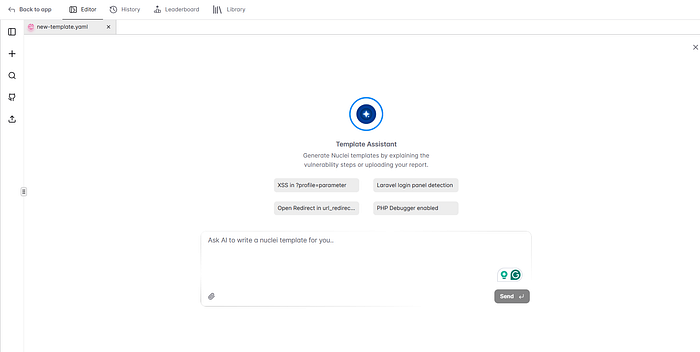
What Is Nuclei AI Assistant?
The Nuclei AI Assistant is a smart helper built into the Nuclei ecosystem that helps security researchers understand, create, and improve Nuclei templates faster. Instead of manually figuring out complex YAML logic, matchers, payloads, or regex, the AI Assistant can explain existing templates, suggest better matchers, and help generate new templates based on real vulnerabilities or ideas.
How Security Researchers Use Nuclei AI Assistant
In practical use, hunters rely on the AI Assistant when they want to quickly convert a vulnerability idea into a working Nuclei template. For example, if you know a JavaScript file leaks API keys but you're unsure how to write the regex, the AI Assistant can help generate the extractor. It is also used to optimize templates by reducing false positives, improving match conditions, and making scans more accurate without adding noise.
Real-World Bug Bounty Workflows
Workflow #1: Quick Win Hunter
Goal: Find low-hanging fruit fast
#!/bin/bash
TARGET=$1

echo "[*] Quick scan for easy wins..."

# Step 1: Scan for panels & exposures
nuclei -u $TARGET \
  -tags panel,exposure,config \
  -severity medium,high,critical \
  -rate-limit 50 \
  -o quick-wins.txt

# Step 2: Scan for known CVEs from this year
nuclei -u $TARGET \
  -tags cve \
  -t 'nuclei-templates/cves/2025/' \
  -severity high,critical \
  -o cves-2025.txt
echo "[+] Results saved!"
Workflow #2: Deep Dive Scanner
Goal: Comprehensive scan for serious bugs
#!/bin/bash
DOMAIN=$1

# Step 1: Find all subdomains
subfinder -d $DOMAIN -silent -o subs.txt

# Step 2: Check which are alive
cat subs.txt | httpx -silent -o live.txt

# Step 3: Comprehensive Nuclei scan
cat live.txt | nuclei \
  -tags cve,exposure,config,panel,rce,sqli,xss \
  -severity medium,high,critical \
  -rate-limit 100 \
  -bulk-size 25 \
  -markdown-export report.md \
  -json -o results.json
echo "[+] Full scan complete!"
This script runs a full, serious security scan on a target domain to find real, high‑impact vulnerabilities.
First, it uses subfinder to discover all subdomains of the target (like api.domain.com, admin.domain.com). Next, httpx checks which of those subdomains are actually alive and reachable.
After that, Nuclei scans only the live targets using powerful templates for CVEs, misconfigurations, exposed panels, RCE, SQL injection, and XSS. It focuses only on medium, high, and critical severity issues, controls speed to avoid blocking, and finally saves the results in JSON and a clean Markdown report.
Workflow #3: Technology-Specific Hunter
#!/bin/bash
TARGET=$1

# Fingerprint technology first
tech=$(httpx -silent -tech-detect -u $TARGET | jq -r '.tech[]')
echo "[*] Detected: $tech"

# Scan based on technology
if echo "$tech" | grep -qi "wordpress"; then
  nuclei -u $TARGET -tags wordpress -o wordpress-results.txt
fi
if echo "$tech" | grep -qi "apache"; then
  nuclei -u $TARGET -tags apache -o apache-results.txt
fi

# Always scan for general issues
nuclei -u $TARGET -tags exposure,config -o general-results.txt
This script first detects what technology the target is using, then runs only the relevant vulnerability scans for that tech.
It uses httpx to fingerprint the website and identify technologies like WordPress or Apache. The detected tech is extracted using jq and printed on the screen.
If WordPress is found, it runs WordPress‑specific Nuclei templates. If Apache is detected, it runs Apache‑related vulnerability checks. Finally, it always runs a general scan for common issues like exposures and misconfigurations, no matter what technology is detected.
Pro Tips & Secret Techniques
Tip #1: Use Nuclei Config File
Create ~/.config/nuclei/config.yaml:
# Default settings for all scans
severity:
  - critical
  - high
  - medium

rate-limit: 50
bulk-size: 25
concurrency: 10
header:
  - 'User-Agent: BugBounty-YourName'
  - 'X-Bug-Bounty: your@email.com'
Now every scan uses these settings automatically!
Tip #2: Monitor New Templates Daily
# Update templates daily (cron job)
0 9 * * * nuclei -update-templates

# Check what's new
nuclei -templates-version
Tip #3: Combine with Notify for Instant Alerts
# Install notify
go install -v github.com/projectdiscovery/notify/cmd/notify@latest

# Scan and get instant alerts
nuclei -u https://target.com -severity critical | notify -bulk
Tip #4: Scan for Actively Exploited Vulnerabilities
# KEV = Known Exploited Vulnerabilities (CISA list)
nuclei -u https://target.com -tags kev,vkev -severity critical
These are vulnerabilities actively being exploited in the wild = highest priority!
Tip #5: Use Nuclei in CI/CD
# .github/workflows/security-scan.yml
name: Security Scan

on: [push]
jobs:
  nuclei:
    runs-on: ubuntu-latest
    steps:
      - uses: projectdiscovery/nuclei-action@v3
        with:
          target: https://your-app.com
          config: |
            severity:
              - critical
              - high
Now every code push triggers a security scan!
Common Mistakes & How to Avoid Them
Mistake #1: Running Everything on Everything
❌ Wrong:
nuclei -u https://target.com(Runs all 9,000 templates = slow + many false positives)
✅ Right:
nuclei -u https://target.com -tags exposure,panel -severity high,critical(Targeted scan = faster + relevant results)
Mistake #2: Not Reading Template Output
Nuclei shows WHY it detected something. Read the full output:
[CVE-2024-12345] [http] [critical] https://target.com/admin
  - Matched: "admin panel"
  - Status Code: 200
This tells you exactly what to verify manually.
Mistake #3: Ignoring Rate Limits
Aggressive scanning can:
- Get you IP banned
- Trigger WAF blocks
- Violate bug bounty rules
Always use -rate-limit and -bulk-size.
Mistake #4: Not Validating Findings
Nuclei might find potential issues. You must validate:
- Access the URL manually
- Confirm vulnerability exists
- Test impact
- Document properly
Mistake #5: Using Only Public Templates
Everyone uses public templates = everyone finds same bugs.
Write custom templates for your targets' specific technologies.
Nuclei vs Other Scanners (When to Use What)
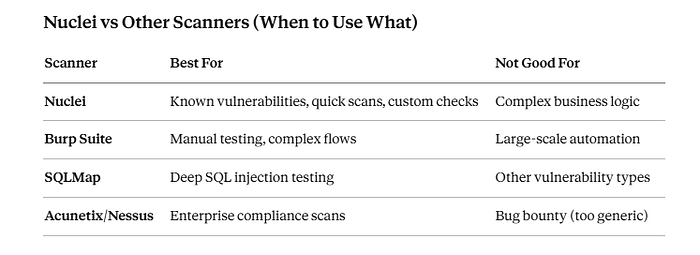
Pro tip: Use Nuclei for reconnaissance and known vulns, then Burp for deep manual testing.
Troubleshooting Common Issues
Issue: "No templates found"
# Solution: Update templates
nuclei -update-templates
Issue: "Too many requests" / Rate limited
# Solution: Reduce speed
nuclei -u https://target.com -rate-limit 10 -concurrency 5
Issue: "Template not working"
# Solution: Test template syntax
nuclei -validate -t your-template.yaml

# Debug mode
nuclei -u https://target.com -t your-template.yaml -debug
Issue: "Results file is huge"
# Solution: Filter severity
nuclei -u https://target.com -severity critical,high -o filtered-results.txt
The Complete Nuclei Cheat Sheet
Basic Commands
# Single target
nuclei -u https://target.com

# Multiple targets
nuclei -list targets.txt

# Specific templates
nuclei -u https://target.com -t nuclei-templates/cves/

# By tags
nuclei -u https://target.com -tags xss,sqli,rce

# By severity
nuclei -u https://target.com -severity critical,high
Advanced Commands
# With rate limiting
nuclei -u https://target.com -rate-limit 50 -bulk-size 25

# With custom headers
nuclei -u https://target.com -header "User-Agent: BugBounty"

# Exclude templates
nuclei -u https://target.com -exclude-templates dns/,ssl/

# Save as JSON
nuclei -u https://target.com -json -o results.json

# Verbose output
nuclei -u https://target.com -v

# Debug mode
nuclei -u https://target.com -debug
Template Writing Quick Reference
id: template-id

info:
  name: Template Name
  severity: critical/high/medium/low/info
http:
  - method: GET/POST
    path:
      - "{{BaseURL}}/endpoint"

    matchers:
      - type: word/status/regex
        words:
          - "match this"
Resources & Next Steps
Official Resources
- Documentation: https://docs.projectdiscovery.io/nuclei
- Templates: https://github.com/projectdiscovery/nuclei-templates
- Discord: Join ProjectDiscovery community
- Twitter: Follow @pdnuclei for updates
Transparency Note
This guide is based on official ProjectDiscovery documentation, GitHub repositories, Intigriti's Nuclei guide, community discussions on Twitter and Discord, and hands-on testing. All examples use legitimate testing targets or hypothetical scenarios. Nuclei currently has 9,000+ templates as of early 2026, actively maintained by a community of 100,000+ contributors. Always follow responsible disclosure and bug bounty program rules when using Nuclei.
Tags: #BugBounty #Nuclei #CyberSecurity #EthicalHacking #Pentesting #InfoSec #WebSecurity