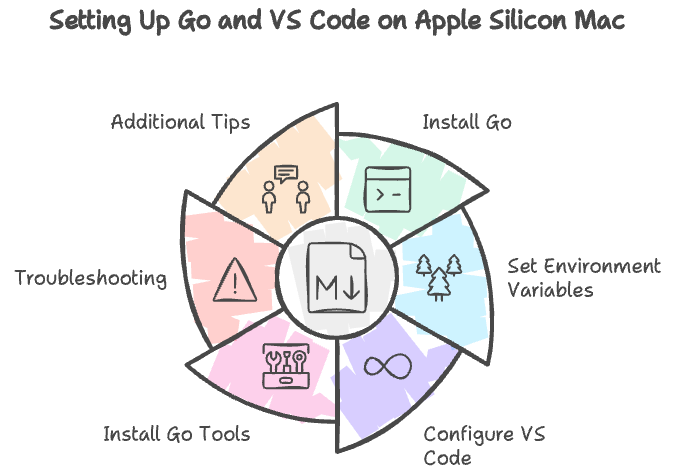
This comprehensive guide will walk you through the process of installing the Go programming language on an Apple Silicon Mac (M1, M2, etc.) and setting it up with Visual Studio Code (VS Code). Whether you're a beginner or an experienced developer, this guide is designed to be easy to follow and implement.
Table of Contents
- Installing Go
- Setting Up Environment Variables
- Configuring VS Code
- Installing Go Tools
- Troubleshooting
- Additional Tips
- Getting Started with Go
- Best Practices for Go Development
1. Installing Go
The easiest way to install Go on an Apple Silicon Mac is by using Homebrew. If you don't have Homebrew installed, you'll need to install it first.
- Open Terminal.
- Run the following command to install Homebrew (skip this step if you already have it installed):
/bin/bash -c "$(curl -fsSL <https://raw.githubusercontent.com/Homebrew/install/HEAD/install.sh>)"- Once Homebrew is installed, use the following command to install Go:
brew install go- After the installation is complete, verify the Go version by running:
go versionIf installed correctly, you should see the Go version information displayed.
2. Setting Up Environment Variables
After installing Go, it's crucial to set up the environment variables correctly. This allows your system to locate the Go executable and related tools.
- In Terminal, run the following command to find out where Go is installed:
which goYou should see a path like /opt/homebrew/bin/go.
- Open your shell configuration file (
~/.zshrcfor zsh or~/.bash_profilefor bash) using a text editor. For example:
nano ~/.zshrc- Add the following lines at the end of the file:
export PATH="/opt/homebrew/bin:$PATH"
export GOROOT="/opt/homebrew/opt/go/libexec"
export GOPATH=$HOME/go
export PATH=$PATH:$GOROOT/bin:$GOPATH/bin- Save and close the file (in nano, use Ctrl+X, then Y, then Enter).
- Apply the changes by running:
source ~/.zshrc(or source ~/.bash_profile if you're using bash)
Now your Go-related environment variables are correctly set up.
3. Configuring VS Code
Visual Studio Code is an excellent IDE for Go development. Here's how to set it up for Go:
- If you haven't installed VS Code yet, download and install it from the official website.
- Launch VS Code and click on the Extensions icon in the left sidebar.
- Search for "Go" and install the Go extension provided by Microsoft.
- Open VS Code settings by pressing Cmd+, (comma) or clicking the gear icon in the lower-left corner and selecting "Settings".
- In the settings search bar, type "go" and add or modify the following settings:
{
  "go.goroot": "/opt/homebrew/opt/go/libexec",
  "go.gopath": "/Users/your_username/go",
  "go.toolsEnvVars": {
    "GOROOT": "/opt/homebrew/opt/go/libexec"
  },
  "go.useLanguageServer": true,
  "go.formatTool": "goimports",
  "editor.formatOnSave": true,
  "[go]": {
    "editor.formatOnSave": true,
    "editor.codeActionsOnSave": {
      "source.organizeImports": true
    }
  }
}
Note: Replace your_username with your actual username.
- Completely close and reopen VS Code to apply the changes.
4. Installing Go Tools
You need to install essential tools for Go development. The Go extension for VS Code can help with this.
- In VS Code, create a new Go file (e.g.,
main.go). - Enter the following content in the file:
package main
import "fmt"
func main() {
    fmt.Println("Hello, Go!")
}- Save the file. VS Code should prompt you to install the necessary Go tools. Select "Install All".
- Wait for all tools to be installed.
Alternatively, you can manually install the tools by opening the Command Palette (Cmd+Shift+P) and running "Go: Install/Update Tools".
5. Troubleshooting
You might encounter some issues during the Go installation or VS Code setup. Here are some common problems and their solutions:
Cannot find Go binary:
- Ensure that the PATH environment variable is set correctly.
- Run
echo $PATHin the terminal to check if the Go installation path is included.
Go tools not working in VS Code:
- Completely close and reopen VS Code.
- Reinstall the Go extension.
- Run "Go: Install/Update Tools" from the Command Palette to reinstall all tools.
Errors related to go.mod file:
- Initialize a Go module by running
go mod init your_project_namein your project directory. - Run
go mod tidyto clean up dependencies.
6. Additional Tips
- Always initialize a module with
go mod init project_namewhen starting a new Go project. - Use the
go getcommand to install necessary packages. - Take advantage of the many useful features provided by the VS Code Go extension, such as auto-completion, refactoring, and debugging.
- Learn the basics of the language through the official Go documentation and tour.
7. Getting Started with Go
Now that you have Go installed and your development environment set up, here are some steps to get started with Go programming:
- Hello World: Create a file named
hello.gowith the following content:
package main
import "fmt"
func main() {
    fmt.Println("Hello, World!")
}
Run it using the command go run hello.go.
- Go Tour: Visit the Go Tour website to interactively learn the basics of Go.
- Go by Example: Check out Go by Example for practical code examples of Go concepts.
- Official Documentation: Familiarize yourself with the official Go documentation.
- Practice Projects: Start with small projects like a simple CLI tool or a basic web server to apply what you've learned.
8. Best Practices for Go Development
As you begin your journey with Go, keep these best practices in mind:
- Follow Go's Code Style: Use
gofmtto automatically format your code according to Go's standard style. - Use
go vet: Regularly rungo veton your code to catch common errors. - Write Tests: Go has a built-in testing framework. Make a habit of writing tests for your code.
- Use Meaningful Names: Choose clear and descriptive names for variables, functions, and packages.
- Handle Errors: Always check and handle errors returned by function calls.
- Avoid Global Variables: Minimize the use of global variables to improve code maintainability.
- Use Interfaces: Leverage Go's interface system for writing more flexible and testable code.
- Concurrency with Care: While Go makes concurrency easier, use it judiciously and always be aware of potential race conditions.
- Keep Packages Small: Aim for small, focused packages with a single purpose.
- Document Your Code: Use comments to explain complex logic and write good package documentation.
By following this guide, you should have a fully functional Go development environment on your Apple Silicon Mac with VS Code. If you encounter any problems or need additional help, don't hesitate to consult the Go community forums or Stack Overflow. Happy coding!