🌟 Why this guide (and why it might change your day-to-day)
Picture this: it's Friday afternoon, your inbox is a forest 🌳 of unread emails, and your manager pings you for "those invoices from last month." You remember seeing them… somewhere… but were you supposed to download and rename them? Drag them into a shared Drive folder? Email finance?
Now imagine the opposite: every time an email with an attachment arrives, n8n quietly grabs the file, renames it cleanly, drops it into the right Google Drive folder, logs a row in a sheet for bookkeeping, and (if you want) pings you in Slack with a little "All set ✅."
That's the tiny but meaningful magic of automation. This guide takes you from zero to a production-ready Email → Google Drive workflow with n8n — step by step, in plain language, with multiple real implementations you can copy. We'll keep things casual and human, but we'll sweat the details so your flow is robust, secure, and maintainable.
This is written for true beginners: if you've never touched n8n or APIs before, you're in the right place. You'll see exact node settings, copy-paste expressions, and tested patterns you can adapt for invoices, resumes, contracts, receipts — basically any attachment chaos your inbox throws at you.
📚 What is n8n (in one coffee-length explanation)?
n8n (pronounced "n-eight-n") is an open-source automation tool. Think Zapier, but with superpowers: you can self-host 🐧, wire up almost any API, add conditions, loops, and small bits of logic without needing a backend team. In n8n, you drag nodes onto a canvas — triggers (when something happens) and actions (do something) — then connect them like a flowchart.
- 🍪 Core idea: chain steps ("nodes") → pass data forward → transform/route as needed.
- 📁 Our use case: Gmail (or another email source) → parse attachments → Google Drive → (optional) Google Sheets/Slack/Notion.
- 🔐 Credentials: OAuth makes it mostly click-to-connect. On self-host, you'll create credentials in your own Google Cloud project (we'll show you).
✅ Pros
- 📦 Open-source, flexible, self-hostable (and a cloud option).
- 📋 Visual, but programmable when you need it.
- 🚀 Connects hundreds of services (and any REST API).
❌ Cons
- 🔧 Slight learning curve vs "no-code only" tools.
- 💾 Self-hosting requires Docker or Node and a database.
- 🔍 Some nodes need careful mapping/expressions at first.
👉 Bottom line: if you want power + clarity + ownership of your automations, n8n is a sweet spot.
📂 The blueprint (what we'll build)
We'll build the Email → Drive pipeline in three levels so you can stop at "just works ✅" or go all the way to "this saves me hours every week 🚀R.&qut;
- Implementation A (Basic)
- Trigger on new email with attachment
- Save attachment(s) to a single Drive folder
- Clean, deterministic file names
2. Implementation B (Smart filing)
- Route by sender, subject keywords, or Gmail labels
- Save into subfolders (e.g.,
/Finance/Invoices/2025-09) - Notify in Slack (or email) on success/failure
3. Implementation C (Production-ready)
- De-duplicate (hash), so repeat emails don't create duplicates
- Create dynamic folders per client
- Log to Google Sheets for audit trails
- Error handling using Error Trigger workflow
- Optional: encrypt ZIPs 🔐 or redact PII (when needed)
For each level, you'll see exact node-by-node instructions, expressions to paste, and pros/cons so you know what tradeoffs you're making.
📝 Notation you'll see often:
{{$json.field}}→ grab a value from the current item's JSON{{$binary.data.fileName}}→ grab a filename from binary data- "Binary property" → the name of the binary field we send to Drive (e.g.,
data)
📤 Getting set up (cloud or self-host)
You've got two clean paths. Pick your flavor:
🪟 🍎 🐧 Option 1 — n8n Cloud (fastest start)
- Signup → n8n.cloud
- Create Workflow → "New Workflow"
- Credentials for Gmail and Google Drive are handled with a nice OAuth pop-up.
✅ Pros: zero ops, always updated, SSL by default. ❌ Cons: monthly billing after free tier, less control of environment.
🐧 Option 2 — Self-host with Docker (max control)
docker run -it --rm \
  -p 5678:5678 \
  -e N8N_HOST=your.domain.com \
  -e N8N_PORT=5678 \
  -e N8N_PROTOCOL=https \
  -v ~/.n8n:/home/node/.n8n \
  n8nio/n8n:latest
Then set up Google OAuth creds:
- Go to Google Cloud Console → "APIs & Services" → "Credentials".
- Create OAuth client (Web application).
- Authorized redirect URI (n8n will show it — copy from Credentials UI).
- Enable Gmail API and Drive API.
- In n8n → Credentials:
- Gmail OAuth2 (scopes:
gmail.readonlyorgmail.modifyif you'll add labels) - Google Drive OAuth2 (scope:
drive.fileis usually enough;driveif you must list/search across the whole Drive)
✅ Pros: privacy, control, limitless customization. ❌ Cons: a touch more setup; SSL/domain recommended; backups are on you.
👉 Pick one and move on. You can always migrate later.
IMPLEMENTATION A — 📚 The "It Just Works" Pipeline
Goal: Every attachment from new emails lands in one Drive folder with clean names.
Node 1 — Gmail Trigger (or Read IMAP Email) 📬
- Node: Gmail Trigger
* Resource: Messages

* Operation: Watch

* Filters (recommended):
  * Has Attachment: true
  * Label: invoices (or your custom label)
* From: vendor@example.com (optional)- Alt: Email Read IMAP (if Gmail API access is restricted)
* Host: imap.gmail.com

* Port: 993

* SSL/TLS: true

* Download Attachments: true

* Only Unread: true (optional)
What you get: 1 item per email. If there are attachments, n8n includes them in binary properties like attachment_0, attachment_1, etc.
Node 2 — Function: split attachments into separate items 🔧
We'll take a single email item and fan-out to one item per attachment, each with a common binary property name (data) for downstream nodes.
Function code (paste in node):
// For each incoming email item, emit one item per attachment.
// Standardizes the binary property name to `data`.
const out = [];
for (const item of items) {
  const binaries = item.binary || {};
  const keys = Object.keys(binaries).filter(k => k.startsWith('attachment_'));
  if (keys.length === 0) continue;

  for (const [idx, key] of keys.entries()) {
    const bin = binaries[key];
    out.push({
      json: {
        emailSubject: item.json.subject || item.json.snippet || 'no-subject',
        emailFrom: item.json.from || item.json.payload?.headers?.find(h => h.name === 'From')?.value || 'unknown',
        emailDate: item.json.date || item.json.internalDate || new Date().toISOString(),
        originalFileName: bin.fileName || `attachment_${idx}`
      },
      binary: { data: bin }
    });
  }
}
return out;
✅ Pros
- 📋 Downstream nodes get one file at a time.
- 🎨 We can craft better names using email metadata.
- 🔄 Works whether an email has 1 or 10 attachments.
❌ Cons
- 🔧 Requires a tiny Function node (but it's copy-paste).
- 📦 IMAP vs Gmail nodes expose fields a bit differently — our code handles likely cases.
- 🔍 If a sender sends very odd MIME structures, you might tweak field access.
Node 3 — Set: create a clean file name 📝
- Node: Set
- Add Field →
fileName - Value (Expression):
{{
  ($json.emailSubject || 'file')
    .toString()
    .replace(/[^\w\-]+/g, '_')
    .slice(0,80)
  + '__' +
  (new Date($json.emailDate)).toISOString().slice(0,10)
  + '__' +
  ($json.originalFileName || 'attachment')
}}
Why: Consistent naming helps searching and prevents collisions.
Node 4 — Google Drive: upload 💾
- Node: Google Drive
- Operation: Upload
- Binary Property:
data - File Name:
{{$json.fileName}} - Parent Folder: Select your target folder (e.g.,
/Team Share/Invoices) - Resolve Data:
true(optional: if you want metadata back)
✅ Pros
- ✅ The core pipeline is now done.
- 📁 Everything lands in one predictable place.
- 📌 Good baseline for beginners.
❌ Cons
- 📂 All files in one folder isn't scalable long-term.
- 🔍 No smart routing yet.
- ❗ No de-dupe (duplicate re-uploads possible).
👉 Advice: Run the workflow once with a test email; check Drive, confirm naming looks right. That's your "green light" moment.
IMPLEMENTATION B — 📚 Smart Filing (labels, keywords, subfolders, notifications)
Goal: Route files to the right subfolder automatically — by sender, subject keyword, or Gmail label — and tell humans what happened.
Strategy 🎨
- Use IF or Switch nodes to branch based on metadata.
- Build a folder path expression (e.g.,
/Finance/Invoices/2025-09). - Add a Slack (or Email) notification node on success/failure.
Node — IF: route by sender 📌
- Node: IF
* Mode: All Rules Must Match

* Value 1 (Expression): {{$json.emailFrom.toLowerCase()}}

* Operation: Contains

* Value 2: @trustedvendor.com
True branch → Finance folder False branch → Generic intake folder
Node — Set: dynamic folder per month 📁
For the True branch (trusted vendor):
- Node: Set
- Add Field →
targetFolderPath - Value (Expression):
{{
  '/Finance/Invoices/' + (new Date($json.emailDate)).toISOString().slice(0,7)
}}
(Produces YYYY-MM, e.g., 2025-09)
Node — Google Drive: ensure folder exists 📦
To create nested folders if missing, use a small Function helper or the Drive node's "Search" + "Create" pair. Here's a robust pattern:
- Google Drive (Search)
- Operation: List
- Filter:
name = "{{ $json.targetFolderPath.split('/').pop() }}" and mimeType = 'application/vnd.google-apps.folder' - In Folder: parent of your Finance path (e.g.,
/Finance/Invoices) - Return All:
true
2. IF
- If no results → create it with Google Drive (Create Folder)
- Else → pass along the existing folder ID
📌 Alternative: write a Function that walks the path pieces and creates missing segments one by one. For many teams, the List+Create approach for the final segment is enough.
Node — Google Drive: upload to dynamic folder 💾
- Node: Google Drive (Upload)
- Binary Property:
data - File Name:
{{$json.fileName}} - Parent Folder: Use the ID from the "Create or Found" node (use
{{$json["...idPath"]}}as returned)
Node — Slack (or Gmail) notification 📤
- Node: Slack → Post Message (or Gmail → Send)
- Text (Expression):
:inbox_tray: Saved *{{$json.fileName}}* from *{{$json.emailFrom}}* to *{{$json.targetFolderPath}}*✅ Pros
- 🌳 Clean structure over time (year/month).
- 📌 Different vendors → different folders.
- 📤 Stakeholders get notified automatically.
❌ Cons
- 🔧 More nodes (a bit more to maintain).
- 📂 You need a predictable parent/root folder.
- 🔍 Searching for dynamic folder IDs is the fiddly part (but you only build it once).
👉 Advice: Start with sender-based routing, then add keyword rules (e.g., subject contains "Invoice", "Receipt", "PO"). Grow it slowly.
IMPLEMENTATION C — 🔐 Production-Ready (de-dupe, logs, errors, extras)
Goal: Make the flow resilient — no duplicates, clear audit trail, graceful errors, and optional data hygiene.
C1 — De-duplicate with a file hash 🔍
Before uploading, compute a hash on the binary to detect repeats:
Function (before upload):
const crypto = require('crypto');

return items.map(item => {
  const bin = item.binary?.data;
  if (!bin) return item;
  const buffer = Buffer.from(bin.data, bin.dataEncoding || 'base64');
  const hash = crypto.createHash('sha256').update(buffer).digest('hex');
  item.json.fileHash = hash;
  return item;
});
Now, Google Drive (List) to check if a file with this hash is already present. There's no native "hash" search, so two patterns:
- Pattern A: Store a Google Sheets row per upload (filename, Drive fileId, hash). Search the sheet for
fileHashbefore uploading; if exists → skip. - Pattern B: Include the hash in the file name (e.g., suffix
__hash_XXXX). If name exists → skip or overwrite policy.
✅ Pros
- 💾 Saves storage & mental overhead.
- 📋 Super clear audit trail (with Sheets).
- 🔄 Safe re-runs.
❌ Cons
- 🔧 Needs an extra node or two.
- 📂 File name with hash is long.
- 🔍 Searching Sheets adds a tiny bit of latency.
👉 Advice: Start with Pattern A (Google Sheets). It doubles as your audit log.
C2 — Log to Google Sheets 📊
- Node: Google Sheets → Append
- Fields:
timestamp,fileName,fileId,emailFrom,emailSubject,fileHash,folderPath - Expressions:
timestamp:{{new Date().toISOString()}}fileId:{{$json["...idFromDrive"]}}(map from upload node)
✅ Pros: future-you (and finance/legal) will be grateful. ❌ Cons: one more credential and node to manage.
C3 — Error Workflow ❗
Create a separate Error Trigger workflow:
- Node: Error Trigger
- Then: Slack Post / Send Email with details
{{$json.workflow.name}},{{$json.execution.id}},{{$json.error.message}}.
In your main workflow, activate "Save failed executions". You now get reliable alerts when something breaks (expired credentials, permission issues, rate limits).
✅ Pros: you'll find out fast, with context. ❌ Cons: one more workflow to keep enabled.
C4 — Optional hygiene steps 🔐
- Redact PII (names/addresses) in PDFs before saving (requires a PDF processing step or external service).
- Encrypt ZIP before upload (use a local command or a custom node; on n8n Cloud prefer trusted integrations).
- Auto-label processed Gmail emails (requires
gmail.modifyscope) to prevent double-processing.
✅ Pros: compliance & peace of mind. ❌ Cons: adds complexity/cost. 👉 Advice: only add these when your basic flow is stable.
🔍 Node-by-node quick sheets (copy me!)
Gmail Trigger (API) — minimal settings 📋
* Resource: Messages

* Operation: Watch

* Filters:
   * Has Attachment: true

   * Label: invoices (create in Gmail first)

   * From: leave empty or a vendor domain
Email Read IMAP — minimal settings 📋
- MAP Host:
imap.gmail.com - Port:
993 - SSL/TLS:
true - Download Attachments:
true - Only Unread:
true(optional)
Google Drive — Upload 💾
- Operation: Upload
- Binary Property:
data - File Name:
{{$json.fileName}} - Parent Folder: pick or pass the ID dynamically
Slack — Post Message 📤
- Channel:
#ops-automation(or DM yourself) - Text:
:inbox_tray: Saved *{{$json.fileName}}* from *{{$json.emailFrom}}* to *{{$json.targetFolderPath}}*. File ID: {{$json["driveFile.id"]}}🎨 Real-world patterns (you'll likely want these)
Pattern 1 — Separate folders by subject keyword 📂
- Switch node on expression:
{{$json.emailSubject.toLowerCase()}} - Cases: contains
invoice,receipt,contract, default →misc - Downstream Set nodes build
targetFolderPathaccordingly.
Pattern 2 — One folder per client 📁
- Maintain a lookup sheet with (email domain → folder name).
- Read it in once (Google Sheets → Read) and store to an Item Lists or Function map.
- Use Function to pick target folder for each email by
emailFromdomain.
Pattern 3 — Save original email as .eml 📦
- Some teams want the full raw email archived.
- Gmail node can return raw MIME in
raworpayload - Use Move Binary Data to build a binary from raw text → Upload as
${fileName}.eml.
Pattern 4 — Attach labels in Gmail after success 🔄
- Gmail node: Add Label to the processed thread (requires modify scope).
- Prevents re-processing on retries; improves observability.
🔐 Security & privacy checklist (don't skip this)
- 🔐 Scopes: use the minimum —
gmail.readonly(ormodifyonly if needed),drive.filevsdrive. - 📌 Least privilege Drive folder: if possible, upload to a dedicated folder with limited access.
- 🌳 PII: invoices often include addresses and names. Share only what's necessary.
- 📦 Retention: set Drive retention rules or auto-move older files to an archive folder.
- 💾 Backups: if self-hosting, back up n8n data volume (credentials & workflows).
- 🔍 Logging: keep the Google Sheets log (or a database table) for audits.
❓ Troubleshooting (common gotchas and quick fixes)
- No items after Gmail Trigger?
* Ensure label and filter actually match incoming emails.

* If using IMAP, some providers rate-limit—add a Poll Interval.- Binary property not found in Drive Upload?
* Confirm your Function emits binary: { data: ... }.

* Verify the Upload node's Binary Property is exactly data.- Duplicate files?
* Add the hash step and Sheets log; skip on hash match.

* Or detect duplicates by searching Drive before upload (name + size).- Permission errors on Drive
* Your OAuth scope might be too narrow (e.g., drive.file can only see files
  your credential created). Use drive for global access, but be mindful
of least-privilege.- Expired credentials
* Re-connect OAuth in Credentials; n8n shows a red status badge.

* On self-host, ensure your public URL and redirect URI match.
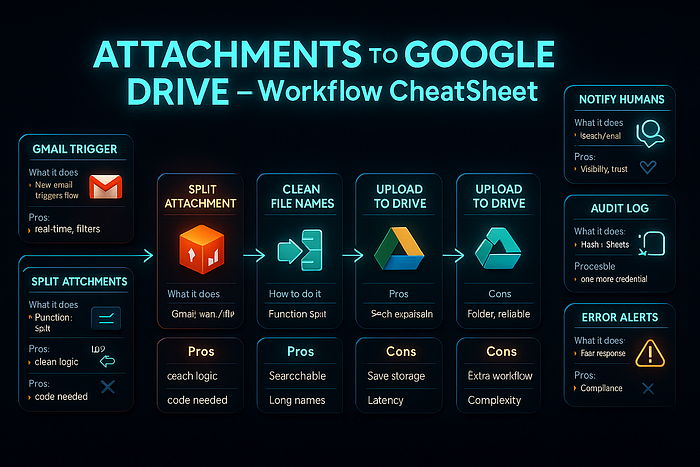
📊 Summary table — functions & where they fit
| 🌟 Point          | 📚 What it does              | 🔧 How to do it                    | ✅ Pros                        | ❌ Cons                     |
| ----------------- | ---------------------------- | ---------------------------------- | ----------------------------- | -------------------------- |
| Gmail Trigger     | Starts flow on new email     | Gmail Trigger (Watch) or IMAP Read | Real-time, precise filters    | API scopes; IMAP polling   |
| Split attachments | One item per file            | Function node (copy code)          | Clean downstream logic        | Small code snippet needed  |
| Clean file names  | Deterministic names          | Set node with expression           | Searchable, avoids collisions | Long names if you add hash |
| Upload to Drive   | Save file                    | Drive → Upload (binary `data`)     | Simple, reliable              | Folder ID mgmt needed      |
| Dynamic folders   | Year/Month, client, vendor   | Set + Drive List/Create            | Scales neatly                 | Few extra nodes            |
| Notify humans     | Slack/Email                  | Slack Post or Gmail Send           | Visibility, trust             | One more integration       |
| De-dupe           | Avoid duplicates             | Hash Function + Sheets             | Saves storage, clean logs     | Extra node; small latency  |
| Audit log         | Who/what/when                | Google Sheets Append               | Traceability                  | Another credential         |
| Error alerts      | Fail gracefully              | Error Trigger workflow             | Fast response to issues       | Extra workflow             |
| Hygiene           | Label email, redact, encrypt | Gmail Modify, custom steps         | Compliance friendly           | Complexity grows           |
🏁 Conclusion & 👉 Beginner roadmap (do this next)
You just learned how to turn a noisy inbox into an organized, self-filing system — and that's a huge win.
Start small. Get Implementation A running today: one folder, clean names, solid upload. Once it's rock-steady, layer in Implementation B for routing and notifications. When this becomes part of your team's daily muscle memory, graduate to Implementation C to de-dupe, log, and handle errors like a pro.
🚀 My suggested path
- Day 1: Basic pipeline (A). Test with 3–5 emails.
- Day 2: Add sender routing + month folders (B).
- Day 3: Add Slack notification + Sheets log (B/C).
- Day 4: Add hash de-dupe ©.
- Day 5: Add Error Trigger workflow ©.
You'll be amazed how quickly this pays you back — in saved clicks, cleaner folders, and fewer "where is that attachment?" messages.
Remember: automation isn't about replacing people. It's about giving people back time to do the human work — thinking, deciding, creating. Let the robots download PDFs. You go build something beautiful. 🎨
📋 Pros & cons recap (each major point)
n8n (tool choice)
- ✅ Open-source, flexible; visual + programmable; connects everything.
- ❌ A tiny bit of learning; self-host needs Docker; some nodes need mapping.
Gmail Trigger vs IMAP
- ✅ Gmail: clean metadata, labels; IMAP: works anywhere.
- ❌ Gmail: scopes/admin approval; IMAP: polling/rate limits.
Drive Upload
- ✅ Stable, simple; works great with binary data.
- ❌ Folder IDs can be confusing; drive permissions matter.
Smart routing
- ✅ Beautiful structure over time; less human sorting.
- ❌ A few more nodes; need a predictable root path.
De-duplication
- ✅ No junk; safe re-runs.
- ❌ Adds a step and a lookup (Sheets/DB).
Audit logging
- ✅ Accountability, peace of mind.
- ❌ Another integration to maintain.
Error handling
- ✅ Faster recovery, fewer mysteries.
- ❌ Requires an extra workflow (once).
🔄 Copy-ready checklist (paste into your project tracker)
✨ Create Gmail Trigger (or IMAP) with filters
🔧 Function: fan-out attachments to binary.data items
📝 Set: deterministic fileName
💾 Drive Upload: binary data, target folder
📂 (B) Routing rules (sender/keywords) → dynamic folder path
📤 (B) Slack/Email notification with file metadata
🔍 © Hash + Sheets lookup to skip duplicates
📊 © Append log row to Google Sheets
❗ © Error Trigger workflow with alerts
🔐 Review scopes, access, retention, and backups
You've made it this far 👏 — which means you're serious about learning and leveling up your skills. If you want to dive deeper into related topics, I've created several CheatSheet series and curated lists on Medium. These collections are like mini roadmaps designed for beginners and self-learners who want step-by-step guidance.
Here's where you can explore more:
- HTML CSS CheatSheet 👉 Read Here
- HTML CSS JavaScript CheatSheet 👉 Read Here
- NextJS CheatSheet 👉 Read Here (coming soon)
- ReactJS CheatSheet 👉 Read Here
- TypeScript CheatSheet 👉 Read Here
- Web3 👉 Read Here
- Git CheatSheet 👉 Read Here
- JavaScript CheatSheet 👉 Read Here (coming soon)
- Visual Studio Code 👉 Read Here
- Front-End 👉 Read Here
- Informative Stories 👉 Read Here
- JavaScript 👉 Read Here
- HTML 👉 Read Here
- Tailwind CSS 👉 Read Here
- NodeJS Series 👉 Read Here
👉 Final encouragement
The first time you see n8n quietly take a messy inbox and turn it into a tidy Drive archive, it feels like magic. But it's your magic — you built it, you own it, and you can evolve it. Start with the basics, keep the flow readable, and iterate. In a week, you won't remember how you lived without it.
If you want a next step after this Email → Drive flow, try:
- Drive → Sheets: OCR/parse totals out of PDFs and write summaries.
- Drive → Slack: Auto-share uploaded files with the right channels.
- Drive → Notion: Create a Notion database item per file (tagged by vendor/client).
You've got this. And your future self — the one not hunting for last month's receipts — will thank you. 🙌