Non members can read here
If you're learning Linux right now, chances are you've had that exact moment.
You type a command.
Nothing works.
Google gives you 37 tabs, each explaining networking like you already work at NASA.
I've been there.
The good news? Linux networking stops feeling like black magic once you understand a few core ideas.
Let's make networking finally click.

The Beginner Mistake I Made
When I started learning Linux, I thought networking meant:
"As long as the internet works, everything is fine."
That illusion was shattered the day I couldn't SSH into a server.
The website was down.
Ping failed.
SSH timed out.
And I had absolutely no clue where to start.
Was DNS broken?
- IP issue?
- Firewall?
- Gateway?
- Cable?
- Magic?
That's when I realized networking isn't about memorizing commands.
It's about understanding how machines talk.
Once that clicked, troubleshooting became 10x easier.
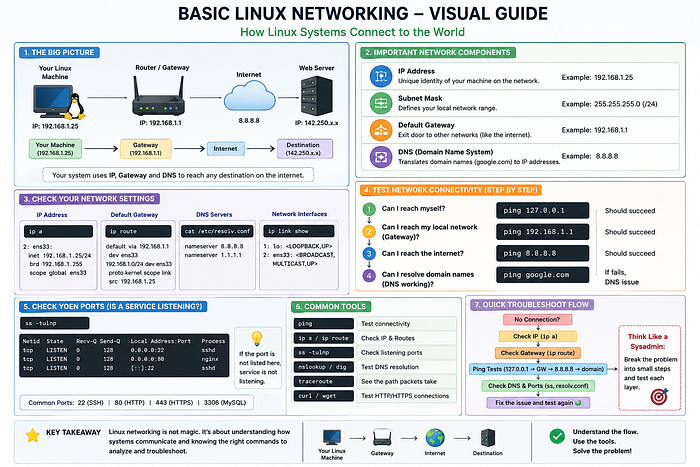
What Linux Networking Actually Is
Imagine sending a letter.
For it to reach someone:
- You need the recipient's address
- Your post office must know where to send it
- Roads must exist
- The person must actually accept the delivery
Linux networking works almost exactly the same way.
Your system needs:
- IP Address → Your machine's identity
- Subnet Mask → Defines your local neighborhood
- Gateway → The exit door to other networks
- DNS → Phonebook that translates names into IPs
Without these?
Chaos.
1. Your Machine's Identity (IP Address)
Every machine on a network needs an address.
Check yours:
ip addr showOr shorter:
ip aExample output:
2: ens33: <BROADCAST,MULTICAST,UP,LOWER_UP>
inet 192.168.1.25/24
This means:
- 192.168.1.25 = your machine's IP
- /24 = subnet size
Think of it like:
House number = IP Neighborhood boundary = subnet
Without an IP, your machine is basically invisible.
2. The Exit Door (Default Gateway)
Your computer can talk to nearby machines directly.
But Google?
AWS?
Remote servers?
You need a gateway.
Check it:
ip routeExample:
default via 192.168.1.1 dev ens33Translation:
"If I don't know where to send traffic, give it to 192.168.1.1."
That's your router.
No gateway = internet sadness.
3. DNS: The Thing Everyone Blames First
Humans remember:
google.comMachines understand:
142.250.x.xDNS translates names into numbers.
Check DNS config:
cat /etc/resolv.confExample:
nameserver 8.8.8.8Test DNS:
nslookup google.comOr:
dig google.comClassic troubleshooting trick:
If this works:
ping 8.8.8.8But this fails:
ping google.comCongrats.
Your internet works.
Your DNS does not.
4. Testing Connectivity Like a Sysadmin
When something breaks, don't panic.
Ask questions.
Can I reach myself?
ping 127.0.0.1If this fails, something is seriously wrong.
Can I reach my local network?
ping 192.168.1.1If this fails:
- Wi-Fi issue
- cable issue
- interface down
- router issue
Can I reach the internet?
ping 8.8.8.8If this fails:
Gateway or upstream issue.
Can DNS resolve names?
ping google.comFails here?
DNS problem.
See the pattern?
Networking troubleshooting becomes detective work.
Not guessing.
5. Network Interfaces (Your Communication Ports)
See interfaces:
ip link showExample:
lo
ens33
eth0
wlan0
Meaning:
- lo → loopback (your machine talking to itself)
- eth0 → wired Ethernet
- wlan0 → Wi-Fi
Bring the interface up:
sudo ip link set eth0 upBring it down:
sudo ip link set eth0 down(Yes, you can accidentally disconnect yourself. Ask me how I know.)
6. Open Ports: The Hidden Doors
A server may be online…
…but still ignore you.
Why?
Because the service port isn't open.
Check listening ports:
ss -tulnpExample:
tcp LISTEN 0 128 *:22Port 22 = SSH
If SSH isn't listening?
You're not getting in.
7. Quick Troubleshooting Flow That Actually Works
When networking breaks:
Step 1
Check IP:
ip aStep 2
Check routes:
ip routeStep 3
Check DNS:
cat /etc/resolv.confStep 4
Ping tests:
ping 127.0.0.1
ping gateway-ip
ping 8.8.8.8
ping google.com
Step 5
Check listening services:
ss -tulnpThis simple workflow saves hours.