Can a $599 Mac handle postgrad life? I tested the MacBook Neo through full-day classes, note-taking, coding, and running virtual machines to find out.
Tim Cook made it loud and clear when he tweeted about the MacBook Neo launch being the best launch week for first-time Mac customers. First-time Mac customers like students, writers, content creators who are just getting started, and perhaps (grand)parents.
While I am not a first-time Mac customer, I did go out and buy the MacBook Neo on launch day. However, I do happen to fall into one of the main target customer groups for the MacBook Neo — Student.
As a postgrad Cybersecurity student, I attend 9-to-5 classes twice a week, watch recorded lectures, take notes, and run lightweight coding and virtual machines, all on my MacBook Pro — until two weeks ago, when I switched entirely to the Neo. Since then, it has been my sole device for lectures and assessments. Here's a week in the life with the MacBook Neo, so you can judge if the $599 Mac lives up to its hype.
My perspective of the MacBook Neo while:

Attending 9-to-5 Classes (My take on the battery performance of the Neo)
Watching Lectures and Taking Notes (My take on the Neo's display, speakers, keyboards and port situation)
Coding & Running a VM (My take on the Neo's performance)

And ultimately,

Why I Prefer the Neo As A Student
Attending 9-to-5 Classes
Mondays are usually the busiest day of the week for me because I have to attend three lectures and two practicals, running from 9 a.m. to around 5 p.m. I charged my Neo to 100% before starting off on Monday's classes.
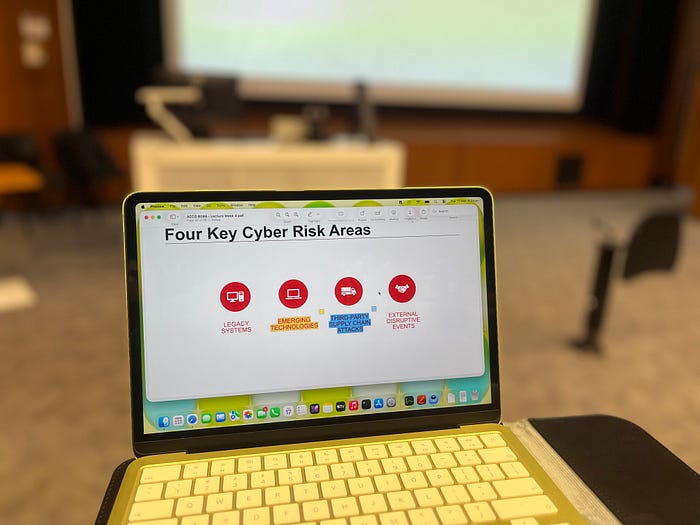
9 a.m. — 11 a.m.: This lecture room is brightly lit since it has all-glass windows on one side. I had to increase the display brightness from the default 30% to about 50% during this lecture (I tend to keep auto-brightness off because it annoys me). During this lecture, I just used Preview to review the lecture notes and occasionally highlight and annotate them with my own understanding as the lecturer explained.
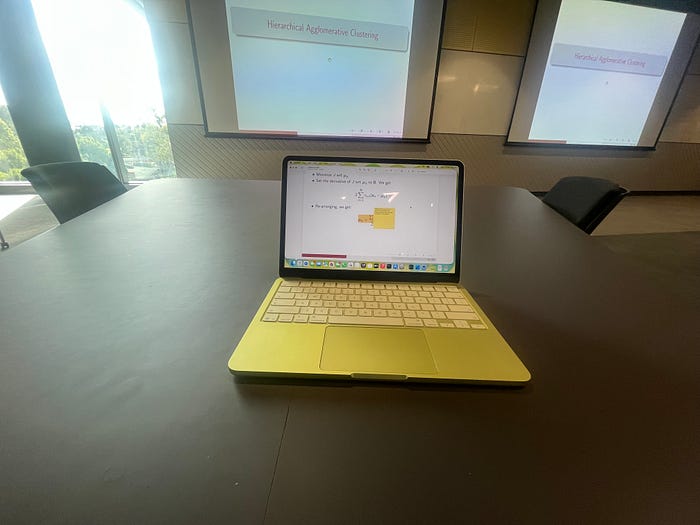
The battery dropped 4% during this two-hour lecture, and I believe that was mostly because of the brightness setting, which required constant fiddling.
11 a.m. — 1 p.m.: The next lecture was in a closed auditorium with no sun shining by any window, so I could once again return to my default 30% brightness setting. During this lecture, I had the lecture notes open in Preview and Apple Notes for my own note-taking, in split-screen view. Occasionally, there was some Safari browsing involved, too, for downloading other lecture materials.
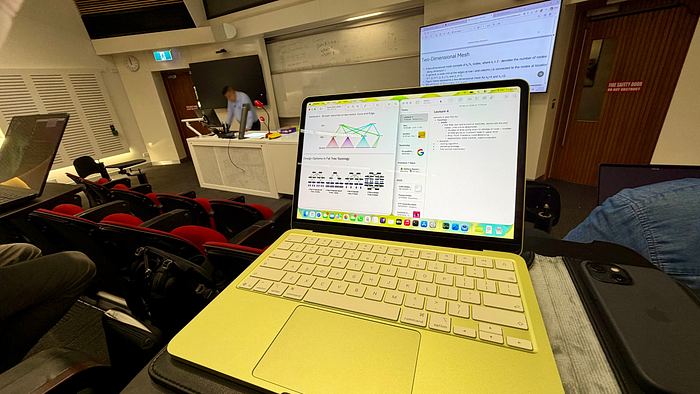
This one took a big hit — the Neo's battery dropped 10% during this two-hour lecture. Not sure if it was the split-screen multitasking or Apple Notes syncing my previous notes from iCloud, but halfway through the day, I was already at 85%.
1 p.m. — 2:30 p.m.: After the two 2-hour lectures, the Neo and I both found some breathing space with the next practical. Most of this was supposed to be completed on the lab desktops running Windows and a specialised virtual machine on them. The only time I had to use my Neo was for completing a report — annotating text boxes in Preview to fill up a table with observed data. The auto-fill-up feature in Preview was giving me a hard time, so I had to resort to just adding text boxes and annotating at the end. Sometimes, it just doesn't work.
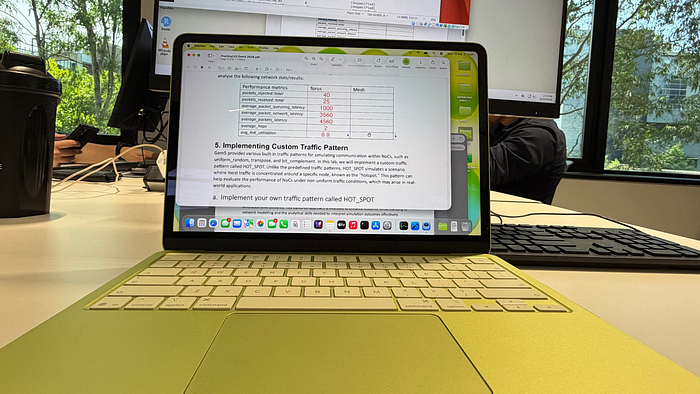
Using Preview for just 10–15 minutes drained 3% battery during this practical workshop.
3 p.m. — 5 p.m.: After getting some lunch, I realised that one of my lectures from 3 p.m. was cancelled. So I decided to make the most of my time by sitting somewhere outdoors and working on my 4K words Medium story (now published) while listening to some good music. I know this isn't exactly the kind of student behaviour you expect, but consider this akin to completing a written assignment, maybe.
Two hours of Pages and Apple Music brought down the battery from 80% to 65%.
5 p.m. — 6 p.m.: Attending the last practical of the day, I got to install Jupyter Notebook from Terminal. While I already have the environment set up on my Pro, it took me a while to set up the Python environment variables on the new Neo before I could attempt the weekly practical.
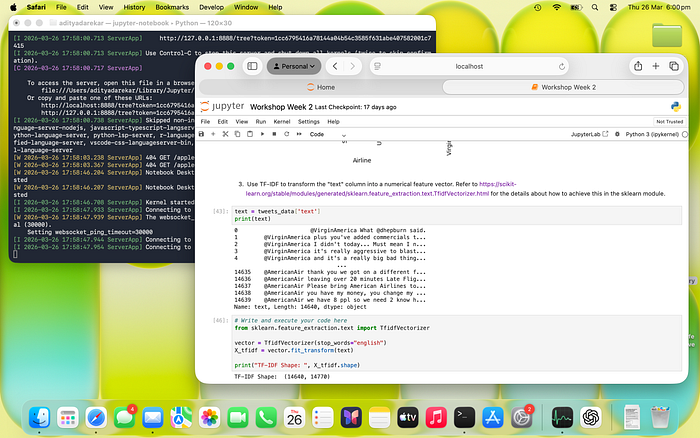
There was some lightweight Python coding involved in this practical. This is the first time I opened Activity Monitor on the Neo to keep tabs on the memory — and sure enough, it had started using about 1GB of swap memory. Yet, there were no system slowdowns or lags. The battery dropped about 6–7% during this hour, and that was surprisingly not bad at all.
That was a full-day walkthrough of my busiest day of the week at university. After I came home, I watched some YouTube while having dinner, checked my mail, and ended the day with 50% battery remaining on the Neo.
Though the battery made me nervous mid-day, it ultimately delivered as expected for lightweight tasks. The Neo's battery matched my needs for note-taking, multitasking, and running some terminal programs.
But there's a lot more that students do, right? Let's discuss how the Neo performs under different scenarios and with its varied shortcomings.
Hey Readers! This is Aditya here 🙋♂️
If you enjoy real-world student tech stories like this one — the kind that go beyond specs and into actual lecture halls, assignments, and daily workflow — do consider leaving a few claps 👏 and highlighting 🖍️ the parts you find most useful. It helps this story reach more students who might actually be wondering whether the MacBook Neo fits university life.
Watching Lectures and Taking Notes
A part of my curriculum involves watching online lectures on my university's dedicated student login. This is when I take more written notes on my iPad mini while watching the lecture on the Mac.
The best thing about such recorded lectures is that you have the flexibility to watch them at your own pace. So I decided to watch these lectures at night in dark settings to test its non-backlit keyboard.
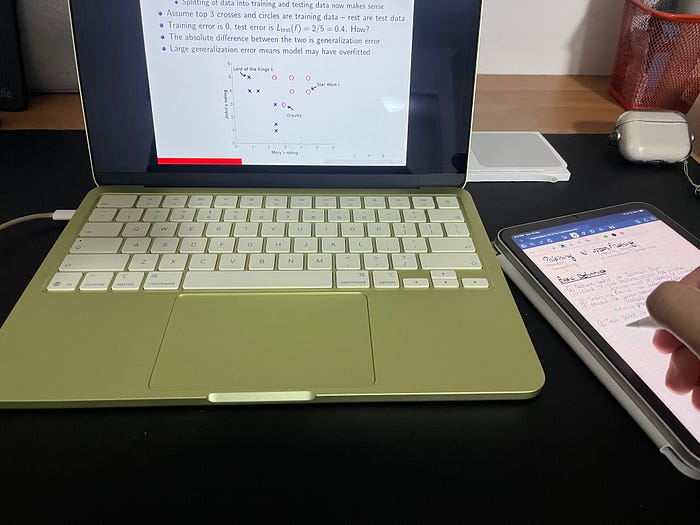
And I am glad to report back — it doesn't disappoint either.
I could see the keys illuminated by the display with 30% brightness. I kept wondering if it was my sheer muscle memory that helped me type in the dark. But there was a different angle to it — the Neo, unlike most of Apple's other Macs, has lighter-coloured keys. Most Macs have black keys that would be completely invisible in the dark without a backlight. The lighter tone — almost whitish on the Citrus, Blush, and Silver Neos — makes the keys much more visible even with a dimly lit display. Long story short, you have nothing to worry about when it comes to typing on the non-backlit Neo keyboard.
Before we talk about the typing experience, I want to touch a bit on the 1080p webcam side of things. Some lectures that students attend or student committee meetings might require a good webcam for video conferences. While many seem to have the opinion that the Neo's webcam is not as good as the 12MP one on the new Macs, let me remind you — it's not that old and bad, either. Until late 2024, all Macs, including my 2023 M3 Pro MacBook Pro, had a 1080p webcam, and it's decent in every lighting condition I have used it in. Sure, it's not super-crisp like the new ones I saw at the Apple Store, but no one is going to point at your Neo's webcam and draw attention to it. The additional built-in features of the 12MP webcams on new Macs include CenterStage and Desk View capabilities; however, both work perfectly well if you use an iPhone in Continuity Camera with your Mac during video calls.
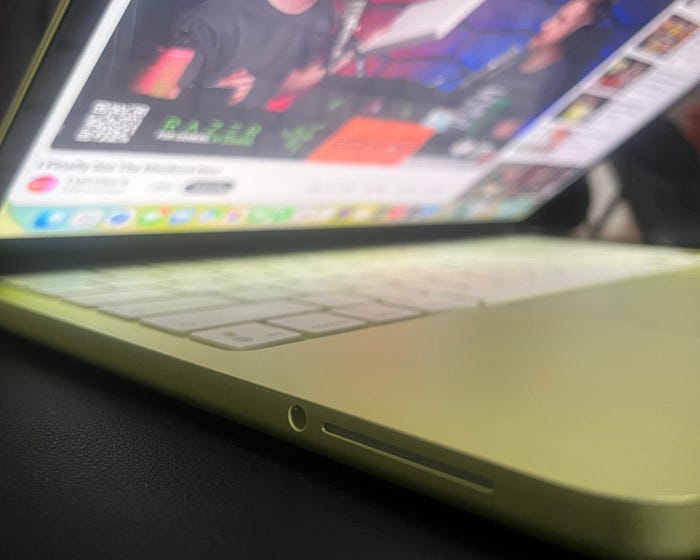
The speakers on the Neo have been the second, hot debating point. And just like the non-backlit keyboard and 1080p webcam, you will be fine with them once you begin using the Neo. In fact, the speakers themselves aren't so bad either. I use them all the time to let my ear canals catch a break from the AirPods Pro, and the sound quality of these side-firing speakers is pretty good. The only catch I have found is:
1. The highest volume isn't as loud as the highest on the MacBook Pro speakers.
2. If you hold the Neo on its sides while any media is playing, you end up covering the speakers.
I don't have an ear for bass and other different tones that audiophiles talk about, but for students who just want to listen to their lectures, the speakers are pretty decent. The same goes for the oddly aligned audio jack. Unless you're a student interested in sound engineering or music production, the Neo is good enough.
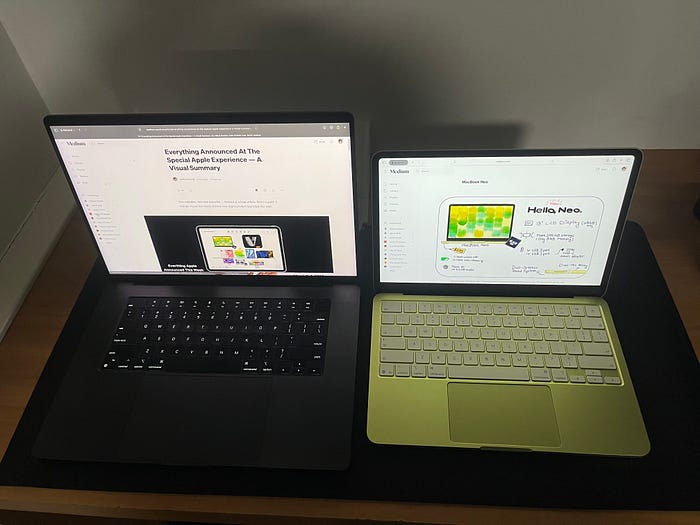
As someone who has used a mini-LED MacBook Pro with 120Hz (or as Apple calls it, Super Retina XDR with ProMotion), the Neo pales out in comparison with its Liquid Retina-only display. Not that you should be expecting any fancy for $600, but I wish the bezels were a bit thinner. I personally love the notch-less, clean look on the front, which creates more space for menu bar items. However, the 500-nit brightness might be a hurdle if you love outdoor study/work sessions. It's not a complete deal-breaker — the display at 100% brightness in outdoor sunny conditions does put up a tough fight, but only to lose in the battery battle. You might just drain the entire battery in an hour or two with 100% display brightness.
And let's finally talk about the typing experience with the keyboard. Note-taking is going to be a big part of any student's life, and if there's anything that matters more than a good display, battery, and OS, it is the keyboard and the typing experience on it. Apple did not compromise on this aspect at all. The Neo is built like a premium machine, with its all-aluminium design and keycaps with the same key travel and mechanism as my $3000 MacBook Pro. The only place you start to notice the difference is in the trackpad — it's not ForceTouch but rather mechanical. It feels more like the iPad Magic Keyboard, and while some believe that's worse, I really like the feel of the mechanical one. It makes a prominent click sound and doesn't rely solely on haptics.
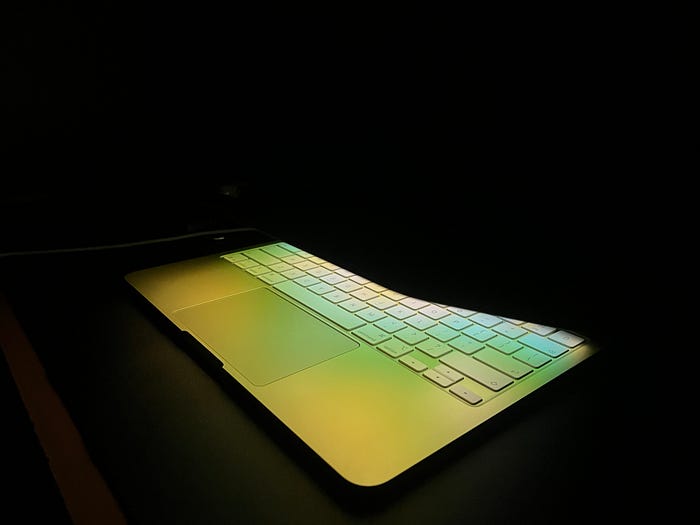
I find the 13" Neo to be a perfect keyboard typing experience in contrast to my 11" iPad Air Magic Keyboard and 16" MacBook Pro experience — it's a sweet spot. The key travel is good, and the palm rest is just enough for a comfortable, two-hour note-taking experience (as evident from the previous section). Some key labels, such as Tab, Caps Lock, Shift, and Delete, seem to have disappeared, leaving only their symbols. For first-time Mac users, this might involve a learning curve or turn into a new minimalist experience, depending on your typing comfort level.
Except for that one key, on the top-right corner — the Touch ID button, that is an additional $100 upgrade. I went for the base model Neo with the lock key and 256GB storage, and with my Apple Watch to log in with a double-click on the side button, I don't miss the TouchID button at all. However, if this is your first-ever Mac and your only Mac, I would recommend the $100 upgrade — not just for the TouchID but also the 512GB storage.
That's all the basics covered — non-backlit keyboard, 1080p webcam, liquid retina display, and side-firing speakers. Now, let's dive a bit deeper into the OS and some heavy-lifting apps that you might encounter in your student life. Like I did.
Coding & Running a VM
Two of my courses this semester involve Python coding and running a Kali Linux virtual machine to run terminal commands and programs.
I had faith that the Neo would handle Python programming in Jupyter Notebook easily, and there it didn't disappoint. The use of swap memory was expected, but aside from that, there were no lags or slowdowns while completing the assessments. I am sure the compile time is a bit higher on the Neo than on my M3 Mac, but once again, that was expected from a machine at this price point.
I have tried running as many programs and tools from Terminal itself, without downloading any GUI-based IDE, to avoid further slowing down the Neo. That's one great thing about the Mac in general: Homebrew makes almost everything as easily available on the command line as sudo-apt does on Linux. Highly recommend it for first-time Mac users who want to dabble with programming.
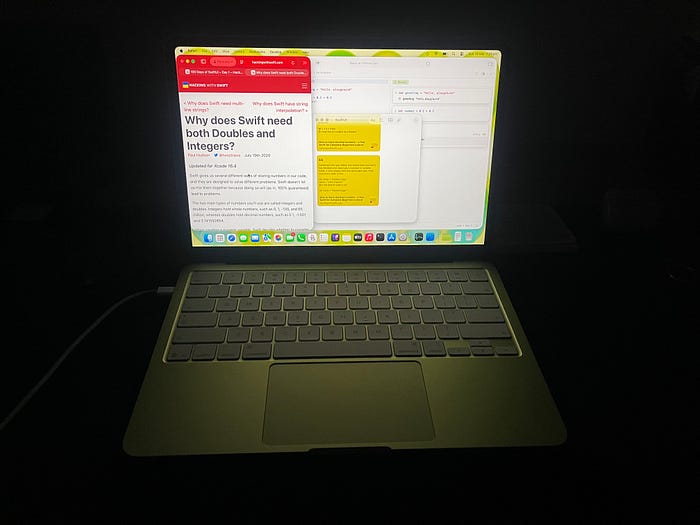
Another coding project that I have undertaken on a personal level is learning SwiftUI in 100 days with the help of Hacking With Swift by Paul Hudson. This made me install Xcode, which is now taking up both storage and memory on the Neo. More than the application, it's the dependencies and tools that Xcode installs and uses that turn this into a stress test for the Neo. At times, I have seen the Mac use up to 5GB of swap memory when I run Xcode, even for beginner-level Swift code in the Swift Playground.
If you know a way to run Swift in terminal-based programs rather than Xcode, I would love to know about it and probably save the Neo from memory stress. To put it in simple words, the fewer GUI-based IDEs you use, the better it would be for the Neo when it comes to coding. And while you are running your IDE, make sure to quit other apps so the IDE has enough memory to compile.
As if the Xcode experiment wasn't enough, I took it a step further and installed VMware Fusion on the Neo to help me run a Kali VM for one of my practicals. This time, I didn't want it to struggle with storage (especially with my 256GB model), so I configured the VM to run off a flash storage drive. After downloading a 3GB ISO image and configuring 20GB of storage, along with 2GB of memory and 2/6 cores for CPU processing, I was able to get the VM up and running.
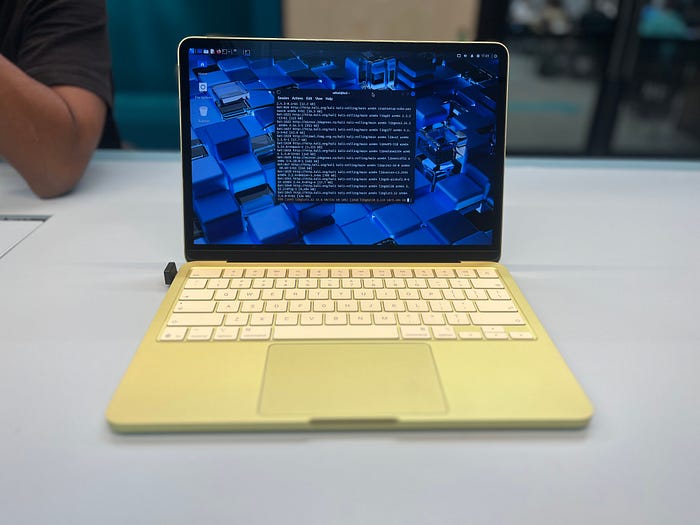
Surprisingly, it did well!
By quitting all other applications in the background on macOS (for some time) and just running the virtual machine, it performed quite well with its limited memory and CPU. I was able to run terminal-based commands, install dependencies and packages, and use Firefox, with a maximum CPU usage of 50% on the VM (probably just a single A18 Pro core).
And yes, of course, the battery drained significantly during this one-hour workshop, during which I used the VM for the course assessment. I believe I lost about 20% battery running the VM off the flash drive. Once again, no slowdowns or lags while the VM was running, and I was switching between it and Apple Notes on macOS for quick notes. But I wouldn't dare to run more than two macOS apps while the VM ran — I could feel the palm rest getting a bit warm, and I had to remind myself about the lack of fans within.
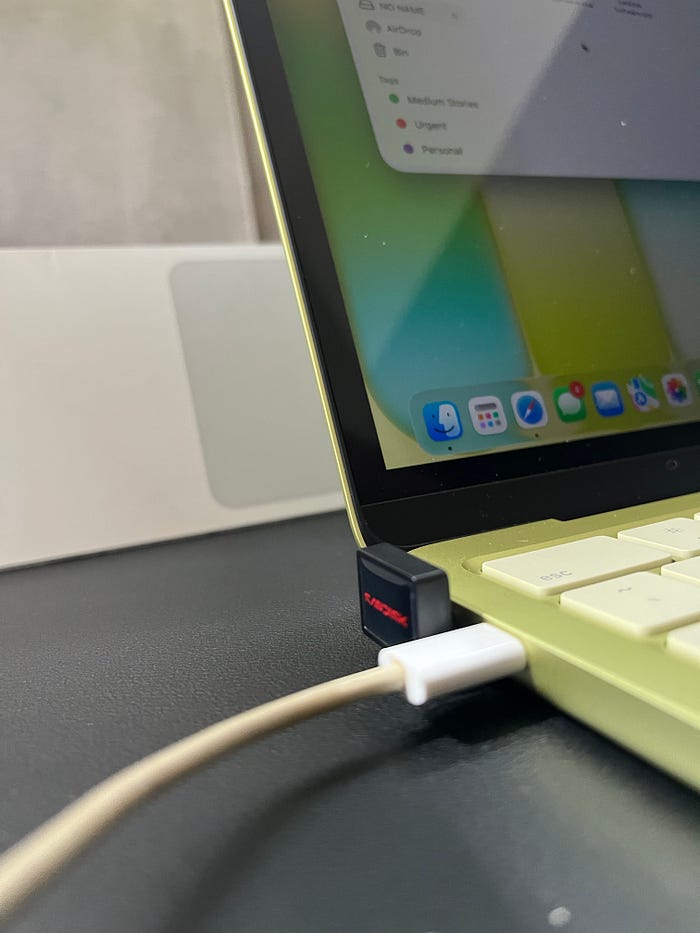
While I was running the VM off the flash drive, I was reminded about the port situation — the MacBook Neo has 2x USB-C ports, with one being the faster of the two, with USB 3 speeds reaching up to 10Gbps, while the other one is capped at USB 2 speeds (480Mbps). Most comparisons of the Neo with the M1 MacBook Air missed this feature; despite the Neo's A18 Pro chip being similar to the M1 in performance, the M1 Macs came with Thunderbolt 4 ports (supporting up to 40Gbps). This, indirectly, also means faster SSD speeds on the M1 compared to the Neo, too.
I am not much of an external display user, so I am mostly ignorant of the tech specs, but I hear that the USB 3 port supports one external display up to 4K at 60Hz. I have seen some do even 2K at 100Hz on Reddit. As for charging, there is no MagSafe compatibility, as you can see. While Apple provides a 20W charger in the box, it can support a maximum charging speed of 30W with a higher-wattage adapter, as I do. The difference between a 20W and 30W speed wasn't a whole lot different — one took 2h 45 mins while the other took 2h 15 mins to charge 50%.
That's about everything I tested on the MacBook Neo in the last two weeks as a postgrad university student. The walkthrough and use cases might not perfectly match how you use your Mac, so do let me know in the comments if there is anything specific you would like me to test on the Neo to help you make a better decision.
Why I Prefer the Neo As A Student
The MacBook Neo isn't without compromises.
But how much of those compromises even matter to a student? Or are they even compromises for a first-time laptop user? That's where the Neo gets more interesting. It doesn't promise anything fancy but delivers pretty decently, as you can tell from my experience in this story.
For me, the Neo has been a personality overhaul — both as a Mac user and as an individual.
Earlier, carrying the beefy 16" MacBook Pro and using it felt cumbersome. The Neo, on the other hand, feels light and extremely portable. The portability of the Neo, along with its macOS experience and reliability, has made it replace my iPad Air setup once and for all. I mostly use the MacBook Neo and iPad mini now for my classes, note-taking, and other browsing — two compact devices that do their job perfectly well.
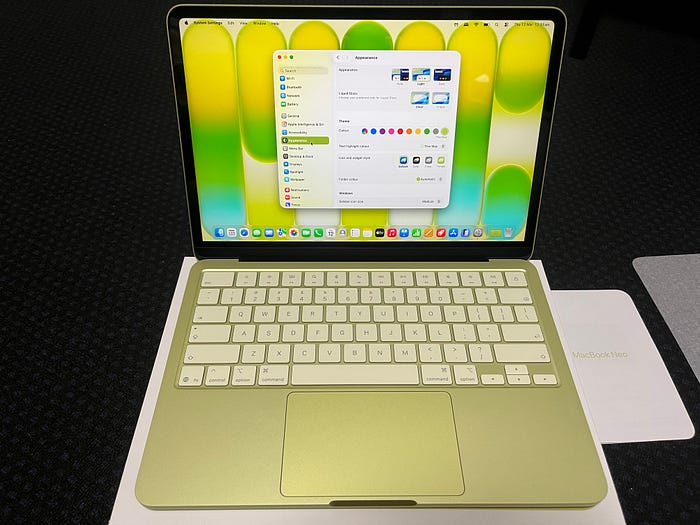
Not to mention the MacBook Neo's personality.
The whole Neo aesthetic of citrus border and the matching macOS citrus theme gives the otherwise boring Mac a unique personality of its own — one I couldn't find with the pricey, monochrome MacBook Pro. It's great to see Apple do something like this.
Yes, the colors calls for attention, and people notice it. In fact, it's a head turner. And it definitely makes a great conversation starter, "What colour do you think my Mac is?" I have had friends tell me it looks Gatorade yellow, feverish green, and even golden under morning sunlight, and yet I don't have a clear answer to the question (Trust me, Citrus makes a very boring answer).
For the two weeks that I tested the Neo, my 16" Mac hasn't come out of its sleeve even once. That's not to say I will stick with the Neo and ditch my Pro forever, but it will definitely stick with me till the end of my uni, given how well it's working for my student workflow.
In the next few weeks, I plan to move my writer's and programming workflows entirely onto the MacBook Neo. I will aim to migrate my 3-year workflow from a 18/512GB MacBook Pro to an 8/256GB MacBook Neo. It'll be interesting to see how well it handles all these workflows.
No further comments on that for now. But if you would like to read those perspectives, do consider following me here on Medium 🧑🏽💻 and subscribing to my email newsletter 📨, so you are the first one to know when I publish.
-Aditya Darekar