Apple's iconic privacy pitch — "What happens on your iPhone, stays on your iPhone" — masks a very different reality on macOS. Behind the glossy design and walled garden is a device that silently sends all of your data back to Apple and other third parties.
This guide breaks down the key privacy problems in macOS and shows you exactly how to fix them, one issue at a time.
#1: App Telemetry & Analytics
Apple collects your data in the name of "Improving the System".
MacOS silently logs the apps you open, when you open them, and from where you open them. This data is sent to Apple's servers — including your IP address — as part of its Gatekeeper and analytics systems.
Apple claims this isn't tracking because it doesn't sell the data, but to the user, it feels like surveillance.
The Solution: Block It at the Source
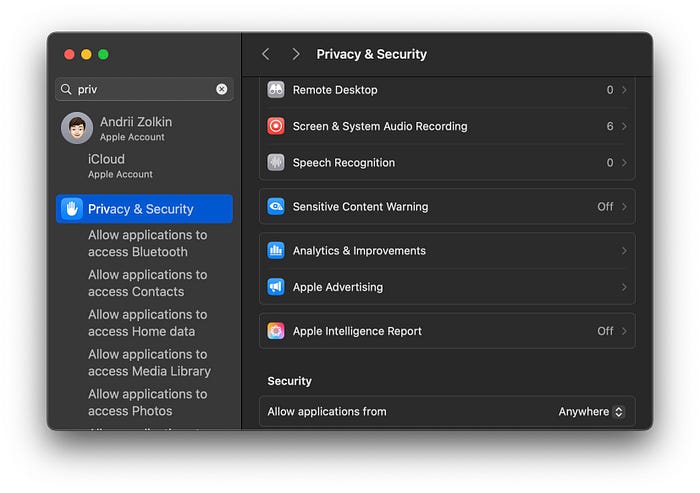
Open System Settings → Privacy & Security
Under Analytics & Improvements, nuke the whole tab.
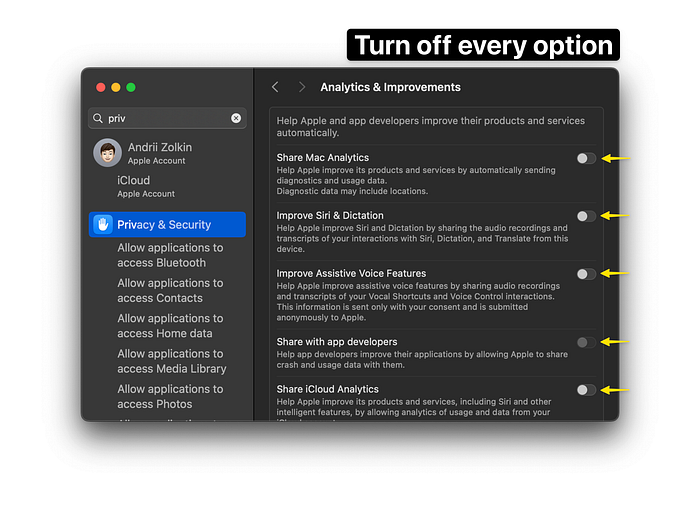
No matter what they say, these are simply ways to go around collecting your data, and in the age of AI, real human data is as valuable as gold.
#2: Siri Recordings
Using Siri or Dictation on macOS means sending voice recordings to Apple for processing. These aren't always processed on-device, especially for older Macs or longer queries. In 2019, Apple was caught letting contractors review Siri recordings , including intimate moments accidentally captured by voice triggers.
While Apple changed its policy to require opt-in consent, the default behavior is still to send data unless you explicitly say otherwise.
The Solution: Turn Siri Into a Local Assistant
Go to System Settings → Siri & Spotlight
Turn off "Listen for":
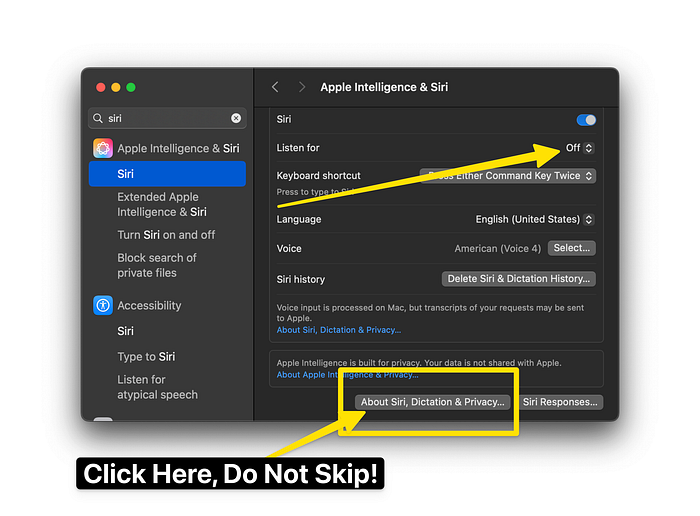
Then Click on "About Siri, Dictation & Privacy"
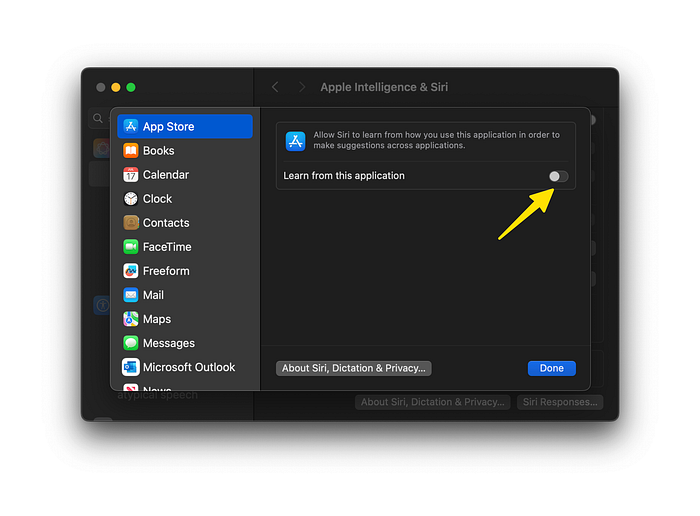
Turn off "Learn from this application".
In step 1, we already turned off "Improve Siri and Dictation", but if you haven't, it's located in the same "Analytics & Improvements".
#3: iCloud Isn't Truly Encrypted
Apple stores your iCloud data on third-party infrastructure (including Google and Amazon servers). Under default settings (Standard Data Protection), you are vulnerable.
The phrase "what happens on your device stays on your device" doesn't hold up when the device auto-uploads your life to the cloud.
- Legally, this means that if you are in trouble, Apple will hand over your data to the authorities.
- In reality, this means that Apple has access to all of the iCloud's data of all its users. Unless they do the following.
The Solution: Lock It Down with Advanced Data Protection
Please note that if you do this and forget your recovery key, nothing and no one will ever be able to recover your data, and it will be lost forever.
Go to System Settings → Apple ID → iCloud → Advanced Data Protection
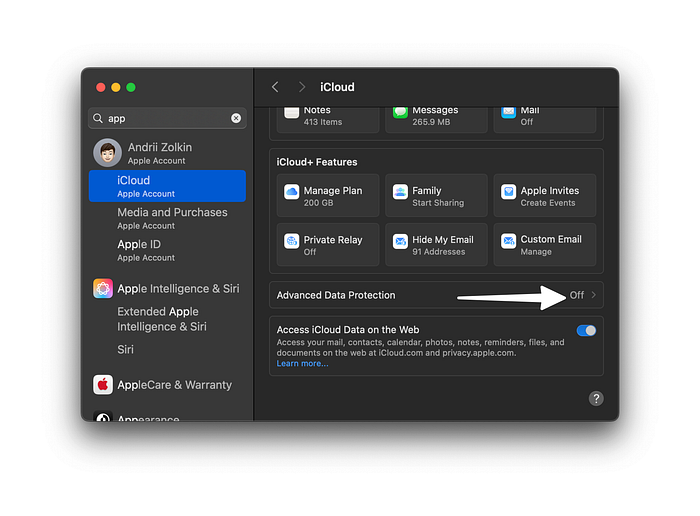
Follow the steps to enable it. You will need to set a recovery key — Apple won't be able to help if you lose access.
Now, all of your iCloud data will be secure.
Additionally, in iCloud, turn off syncing for features you don't need. Things like safari history, Siri data, and others.
#4: Spotlight & Safari Search Leaks
Every time you search using Spotlight or Safari, your queries can be sent to Apple — and potentially partners like Bing. This includes partial searches, usage data, and your location. It's all done in real time, often before you hit enter.
That means even something as simple as checking a file or doing math in Spotlight can ping external servers.
The Solution: Strip It Back to Local-Only
Go to System Settings → Spotlight
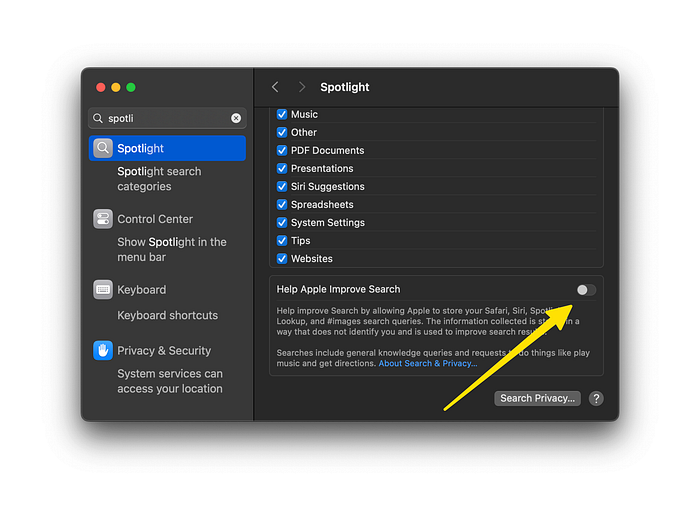
Tick this box off, Apple will be just fine without your help.
Next, go to Safari's Settings (not the system settings). You can do this by launching Safari and using the shortcut Command + ,
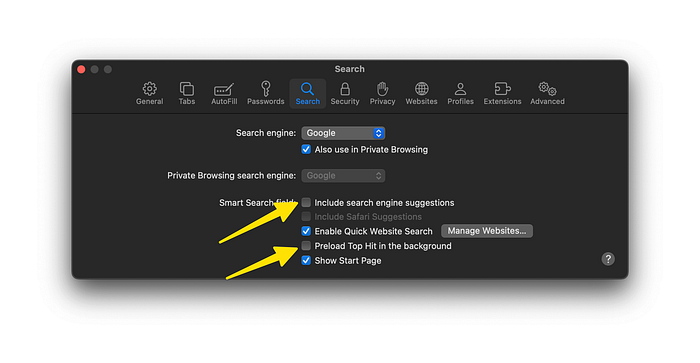
In the Settings → Search
Disable "Search engine suggestions" and "Preload Top Hit in Background"
Next, Go to Safari → Privacy
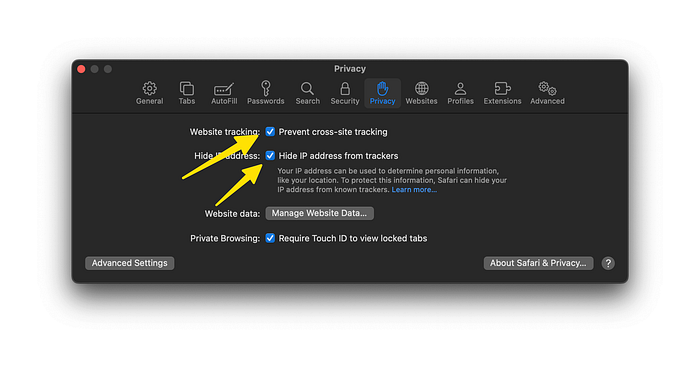
Enable "Hide IP address from trackers" and turn on "Prevent cross-site tracking."
Now your safari is more or less private and doesn't just give out your data to third party partners of apple.
#5. Third-Party Trackers in System Services
Even if Apple isn't selling your data, it routinely depends on third-party services for core features. For example:
- Safari checks websites against Google's Safe Browsing list
- Mail loads remote images that may contain trackers
- iCloud Private Relay uses Cloudflare as a relay partner
This creates more ways for your device to leak identifying data, and often without your awareness.
The Solution: Minimize External Dependencies
Open System Settings → Network → Wi-Fi → [Your Network] → Details
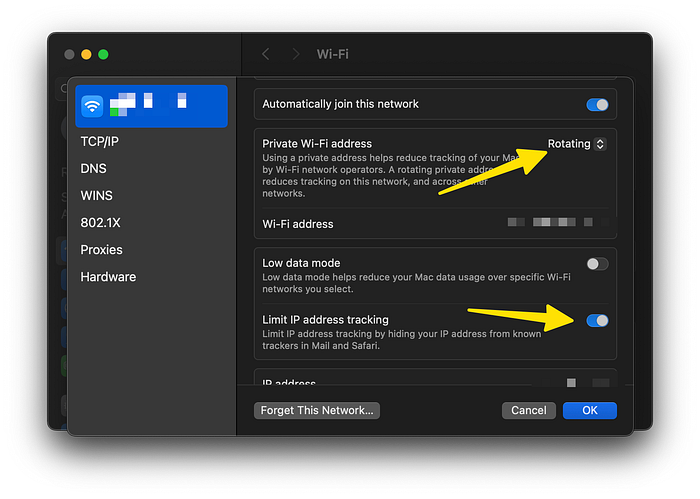
In here, set your private Wi-Fi address to be "Rotating" and tick the option "Limit IP address tracking" to be ON.
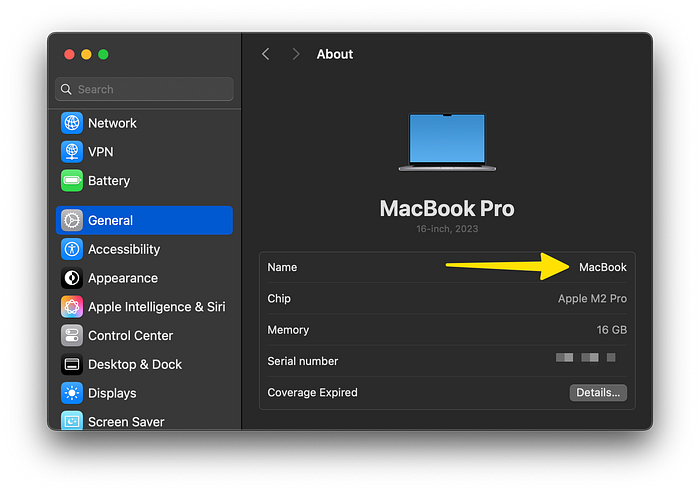
Open System Settings → General → About and rename your Mac to something generic (e.g., "MacBook" instead of "John's MacBook Pro")
Keep your AirDrop off unless needed, or at the very least set it to "Contacts Only".
#6: Outbound Connections from Apps
macOS apps — even trusted ones — can reach out to servers quietly. There's no built-in way to monitor or block this behavior.
Apple has a firewall, but it only allows incoming connections.
The Solution: Install an Outbound Firewall

- Install Little Snitch or LuLu (I recommend LuLu because it's open source)
- Set to Alert Mode initially to learn what apps are doing
- Deny or restrict apps that attempt to connect to analytics or tracking domains
- Build rules to automate what's allowed vs. blocked
- Monitor with the network activity viewer to spot unusual behavior
This is a great way to protect against apps, especially because configuring everything one app at a time would take hours and wouldn't bring as effective results.
#7: VPNs for Network Obfuscation
Your ISP can see your DNS queries, visited sites, and even inject ads if they want. Many Apple services bypass VPNs at the system level, though this is improving.
The Solution: Use a Verified, Privacy-First VPN
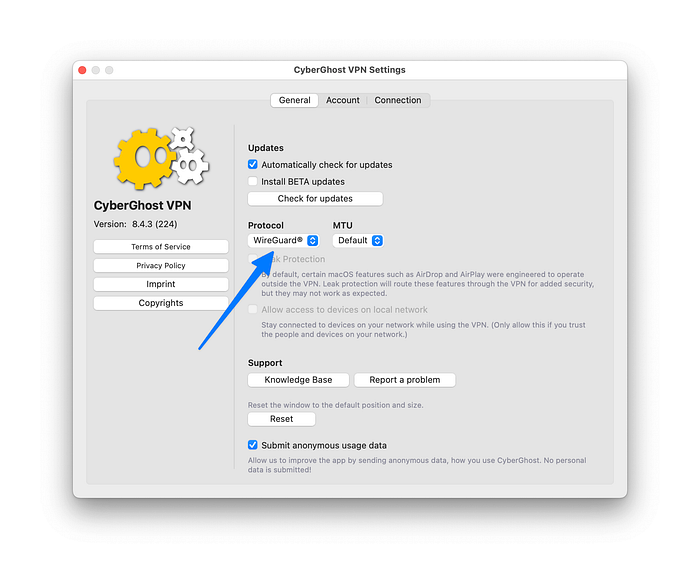
Choose a VPN with a no-logs policy. I use CyberGhost
Install the official macOS app and enable the kill switch feature (it should be somewhere in the settings, depending on the VPN).
This will ensure that if something happens with the VPN, like an error, all the connections on your Mac will be temporarily disabled until the VPN fixes itself, ensuring that there is never a leak.
Final Thoughts
macOS is more private than Windows or ChromeOS, but that's a low bar. Apple's defaults favor convenience and data collection under the guise of security. By taking control of your settings and installing a few key tools, you can turn your Mac into a far more private machine.
Your Mac. Your data. Your rules.
If you want to read more articles related to productivity and MacOS, consider dropping a follow! It helps me grow and produce more content!