I have been using Claude for over a year. I use it to brainstorm article ideas, refine my writing, research topics, and think through business decisions. It is, without exaggeration, the most useful tool I have added to my workflow since I went full-time as a content creator.
So when Anthropic launched Claude Cowork inside the Desktop app, I assumed it was just a fancier version of the same chat I was already using. I opened it, typed a question, got an answer, and thought, "Okay, so it's Chat with a different tab. Cool."
I was using it completely wrong. And if you are a Mac user with a Claude subscription, there is a very good chance you are too.
If you are a Mac user exploring Cowork (or thinking about it), I just opened The Useful Tech Club on Discord. Inside, you get direct access to me for help setting up, configuring, and actually using Cowork on your Mac. No waiting for a reply in a comment section. You message me, I respond.
You also get access to my full app databases, exclusive behind-the-scenes content, my earnings transparency reports, and a community of Apple power users who actually care about getting more out of their devices. If anything in this post makes you want to try Cowork, the Club is where I help you get it running.
Join The Useful Tech Club on Discord →
Chat Is for Thinking. Cowork Is for Doing.
This is the single most important distinction, and almost nobody gets it right away.
Claude Chat is a conversation. You ask a question, you get an answer. You brainstorm, you bounce ideas, you iterate on text in a back-and-forth. That is what it is designed for, and it is excellent at it.
Claude Cowork is an assistant that sits at your Mac and actually does things. It reads files, creates new documents, organizes your stuff, connects to your email and cloud services, and delivers finished output directly to your Mac. You do not copy-paste anything out of a chat window. You describe what you want, and it hands you the result as a real file in a real folder.
The difference is not subtle. It is the difference between texting a friend for advice on how to organize your closet and hiring someone who shows up, opens your closet, and hands it back to you sorted.
I tested this with the exact same task to make the point clear to myself. I asked Claude Chat to create a blog post outline for a future article. It gave me a perfectly good outline, right there in the chat window. Then I had to select all of it, copy it, open a new document, paste it in, format it, and save it somewhere. Five manual steps after the "AI" part was done.
Then I gave Cowork the same task. I pointed it at a folder on my Mac, told it to read my writing style guide first, and asked it to save the outline as a markdown file. It read my style preferences, created the outline in my voice, and dropped the finished file directly into my Output folder. I did not touch it. It was just there.
Same AI brain. Completely different experience.
What Made Me Take It Seriously
I will be honest. The outline task was a nice demo, but it did not blow my mind. I could have done that manually in a few minutes. What changed everything was when I started giving Cowork tasks that Claude Chat literally cannot do.
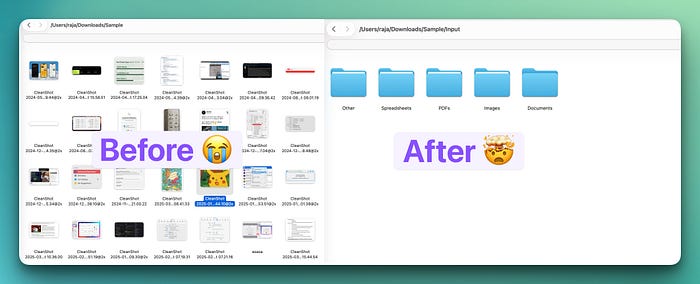
It organized months of messy files in under 2 minutes.
I had a folder full of screenshots, CSV files, and PDF documents that had been piling up for weeks. Mixed file types, no naming convention, total chaos. The kind of folder you keep meaning to clean up on a Sunday afternoon that never comes.
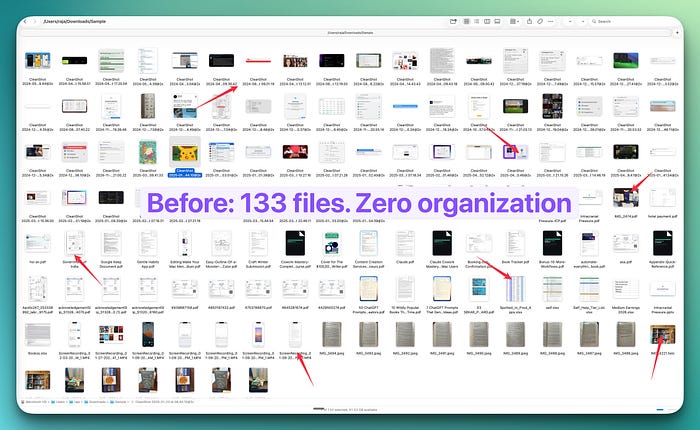
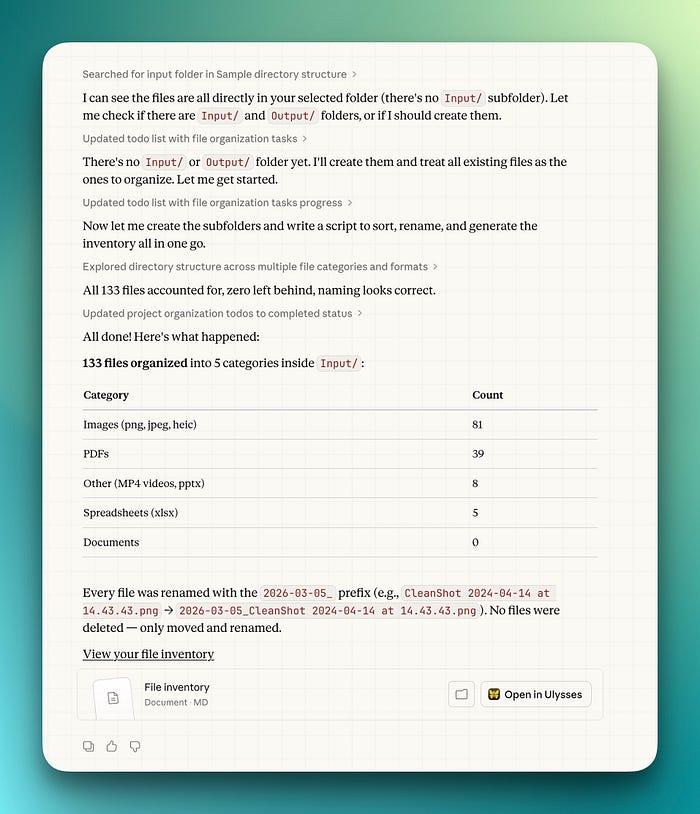
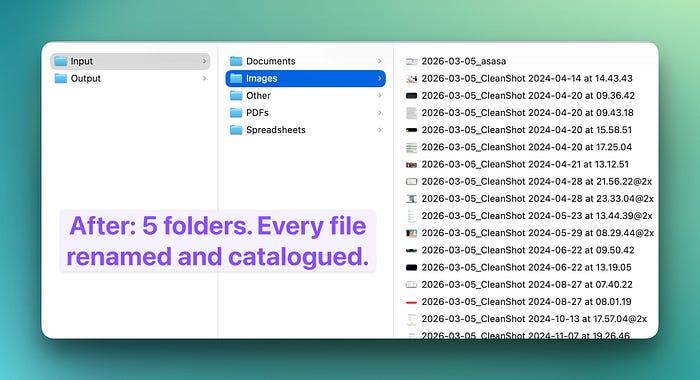
I pointed Cowork at it and told it to sort everything into subfolders by file type, rename each file with a date prefix, and create an inventory document listing every file with its original name, new location, and size.
It did the entire thing in under two minutes. Every file moved, renamed, and catalogued. A clean inventory markdown file sitting in my Output folder with a summary at the top showing exactly how many files were in each category.
That would have taken me 30 to 40 minutes manually. And I would have hated every second of it.
It turned 5 blog posts into a content audit spreadsheet, simultaneously.
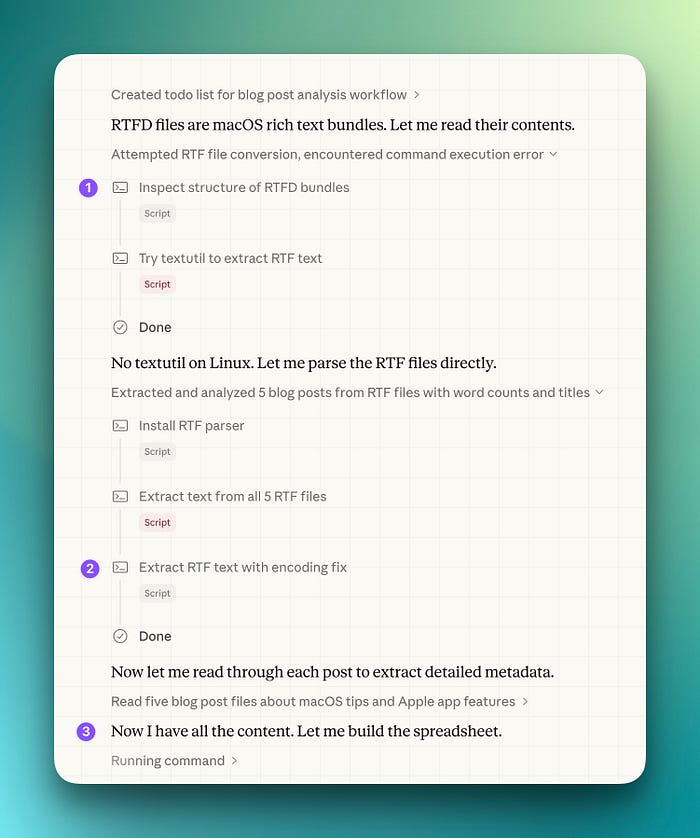
This is the one that genuinely surprised me. I dropped 5 of my recent blog posts into a folder and asked Cowork to read all of them, extract the title, word count, topic, audience, and suggested SEO keywords for each one, and compile everything into a spreadsheet with a content analysis sheet.
Here is the part that made me sit up. My blog posts were saved as .rtfd files, which are a macOS-specific rich text format. Cowork had never seen them before. Instead of failing or asking me to convert them, it figured out what they were on its own. It inspected the file structure, tried one extraction method, hit an error, installed an RTF parser, handled an encoding issue, and then successfully extracted the text from all five posts. I watched it troubleshoot in real time without me lifting a finger.
The finished spreadsheet had a Post Inventory sheet with every article broken down by title, word count, topic, and keywords, plus a Content Analysis sheet that calculated my average word count (2,655 words), identified that my longest post was "10 Mac App Subscriptions Worth Every Cent" at 3,163 words, and mapped out the most common themes across all five posts.
It even spotted that I was covering "hidden macOS features" and "built-in Apple apps replacing paid tools" in 3 out of 5 posts and flagged topic areas I had not covered yet.
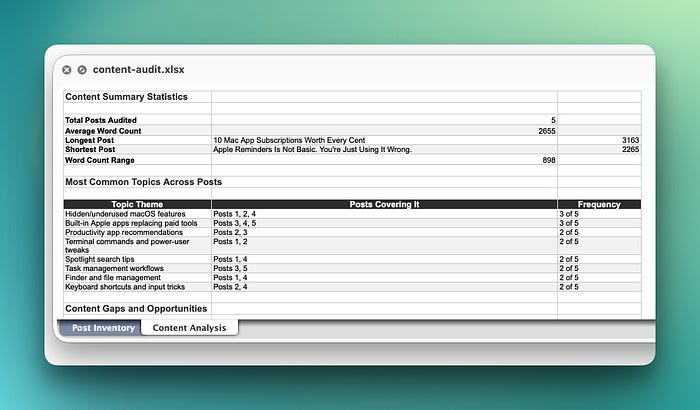
That content audit would have taken me at least 2 hours of reading, note-taking, and spreadsheet building. Cowork did the whole thing, including troubleshooting a file format issue, in about 5 minutes.
It caught something in my email I would have missed entirely.
This was the moment I went from "this is cool" to "this is essential."
I connected Cowork to my Gmail and asked it to summarize every email from the last 7 days, group them by sender, flag anything that needed a reply or had a deadline, and save the digest as a markdown file.
Buried in the output, flagged under "Action Required," was an email from Amazon Associates about an issue with my account. I had missed it. It was sitting in my inbox between newsletters and promotional emails, and I would have scrolled right past it. Cowork surfaced it, flagged it, and put it at the top of the digest with a clear note that it needed immediate attention.
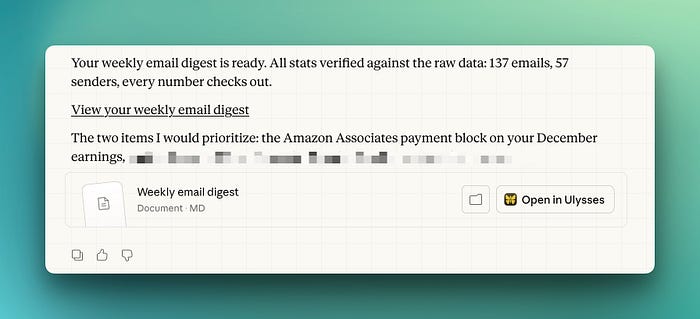
One email catch. That alone justified the entire exercise.
The Part Nobody Talks About: Context Files
Here is something that separates a mediocre Cowork setup from one that actually feels like a personal assistant.
Before I ran any of these tasks, I created a simple text file called voice-and-style.txt and put it in a Context folder inside my Cowork directory. The file describes who I am, what I write about, who my audience is, and exactly how I like my writing to sound (including the things I never do, like using rhetorical questions as transitions).
Every time I point Cowork at my folder and mention that context file in my prompt, it reads it first. That means I never have to re-explain my brand, my stats, my tone preferences, or my audience. It already knows. The output sounds like me from the first draft, not like a generic AI article that I then have to spend 30 minutes rewriting.
When I asked it to draft a sponsor outreach email, it pulled my follower count, my audience demographics, and my partnership pricing from the context file automatically. The draft read like something I would actually send. Not perfect on the first try, but maybe 80% there instead of the usual 40% you get from a cold AI prompt.
This is the kind of setup that takes 10 minutes once and saves you hours over the following weeks.
The Setup Takes 10 Minutes
If you want to try this yourself, here is what you need.
Download the Claude Desktop app from claude.com/download and sign in with any paid Claude plan (Pro at $20/month works fine).
Open the app, switch to the Cowork tab, and create a folder structure on your Mac with three subfolders: Context (for files that teach Cowork who you are), Input (for files you want it to process), and Output (for finished results).
Write a context file about yourself, your work, and your preferences. Check "Work in a Folder" in the Cowork input area and point it at your main folder.
That is the entire setup. No terminal. No code. No configuration files. You are literally creating folders and writing a text file about yourself.
From there, start with one task that solves a real problem. Do not try to automate your entire life on day one. Pick your messiest folder, or your most tedious weekly task, and describe the outcome you want. Cowork handles the rest.
What I Saved This Week
I tracked my time across the tasks I ran this week. Here is the honest breakdown.
Going through my blog posts for content insights used to take me about 2 hours when I did it manually. Reading each post, pulling out key metrics, noting patterns, building a spreadsheet. Cowork did it in minutes.
Organizing my accumulated screenshots and PDF documents was one of those tasks I had been putting off because it is boring and time-consuming. At least 30 to 40 minutes of manual dragging, renaming, and sorting. Done in under 3 minutes.
Processing a week of email into an actionable digest with priorities flagged, instead of spending 20 to 30 minutes scrolling through my inbox trying to figure out what actually matters. And catching the Amazon Associates issue I would have missed.
All together, conservatively, Cowork saved me about 4 hours this week. That is 4 hours I spent actually writing, which is the only part of my job that directly makes money.
The Whole Experience in One Sentence
Using Cowork felt like talking to a human assistant, handing them your laptop, and getting it back with the work done. Zero technical skills required.
That is not marketing language. That is what it actually felt like. I described what I wanted in plain English, and finished files showed up in my folder. Some tasks took 2 minutes. Some took 5. None of them required me to understand anything about code, terminals, APIs, or configuration.
If you use a Mac for your work and you are still only using Claude Chat, you are leaving the most powerful part of your subscription completely untouched.
Want the Complete System?
Everything I described in this post is the surface. I have spent weeks building, testing, and refining a complete system around Cowork, and I put all of it into one resource.
Cowork Mastery: The Complete Claude Cowork Guide for Mac Users is a 285-page guide with 10 modules, 20 copy-paste workflows, a prompting framework that gets better output on the first try, scheduling automations that run tasks while you sleep, context file templates, connector setup walkthroughs, and a 30-day day-by-day plan that takes you from zero to a fully automated workflow.
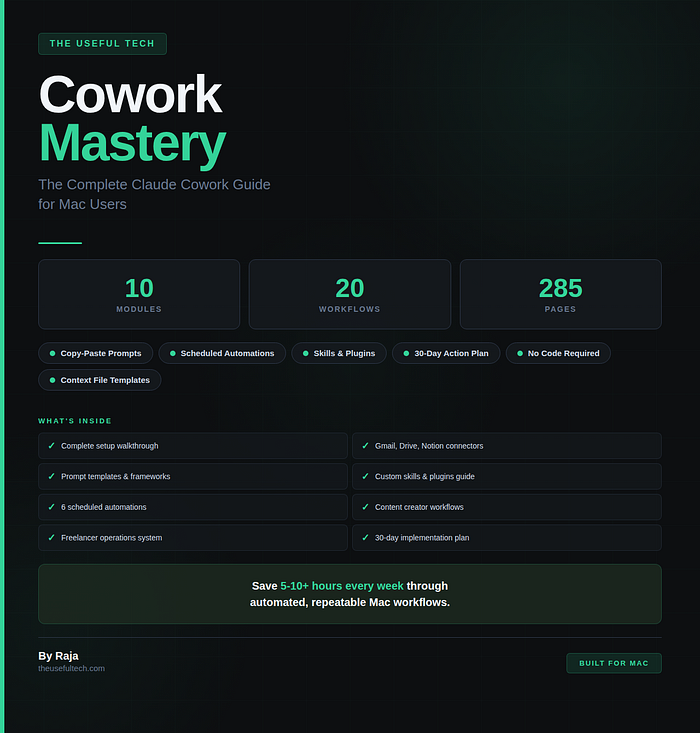
It covers everything from the basics (like what I shared today) to advanced strategies like sub-agent chaining, custom skills, plugins, and Apple Shortcuts integration. Every prompt has been tested with real files. Every workflow comes from my actual daily use.
If this post saved you from one "wait, I didn't know that" moment, the full guide has 285 pages of them.
Get Cowork Mastery on Gumroad →
Built by a content creator, for content creators, freelancers, and anyone who wants their Mac to work harder than they do.
P.S. If you are a Club Member, DM me on Discord for a 50% discount (I will also be happy to share a 50% discount for any other digital product in my library you want to purchase), and if you are a Discord Community Member, DM me to get a $10 discount. I am giving the $10 discount code to the first 20 people who DM me!